Team Task Management on WhatsApp, When It's Enough and When You Need a System
When a WhatsApp group is still enough to manage team tasks, the signs you need a system, and the middle ground: task data in Google Sheets, reminders on WhatsApp.

Managing tasks in a WhatsApp group is still enough as long as the team is small, the tasks are few, and they're short-lived, say done within a day or two. Once there are recurring tasks, several owners, or the owner keeps asking "how's it going", the group chat starts to struggle. The middle ground that often fits best: keep task data in one place such as Google Sheets, and let the reminders keep arriving on WhatsApp, the app the team already opens every day.
When a WhatsApp group is still enough
- A team of three to five people who sit close together or talk often.
- Tasks that take hours or days, not weeks.
- Hardly any tasks that repeat every week or every month.
- One person who assigns the work and can remember all of it.
In that situation, WhatsApp's built-in features already help. Important messages can be pinned to the top of the chat. When the feature launched, 9to5Mac reported a limit of three messages per chat, with durations of 24 hours, 7 days, or 30 days, and group admins can choose who's allowed to pin.
Signs the group chat isn't enough anymore
- Tasks get buried. The morning's instructions are under hundreds of messages by lunch.
- It's unclear who owns what. A "please handle this" in the group gets read by everyone, and done by nobody.
- Recurring tasks get forgotten. Weekly reports, regular posts, or monthly payments depend on one person's memory.
- Deadlines pass without anyone noticing. Nobody gives a reminder the day before.
- The owner has to ask to know where things stand. The status of the work only exists in each person's head.
If two or more of these sound familiar, it's time for a source of task data that's separate from the chat. A similar problem for daily reports is covered in Owners Can't Read Every Team Chat: How to Get the Picture of Your Business in 5 Minutes.
The middle ground, data in Sheets, reminders on WhatsApp
Moving to a new project management app often fails not because the app is bad, but because the team has to open one more app. The middle ground: tasks are recorded in Google Sheets, and every morning a script sends a summary of the day's tasks to the team's WhatsApp. The team stays in the app they already use, but the data is tidy and in one place.
This is what I built at a social media agency, and the story is in the WhatsApp task reminder case study. Weekly, monthly, and one-off tasks are recorded in separate tabs, then a script combines the ones that are in progress, starting today, or due today.
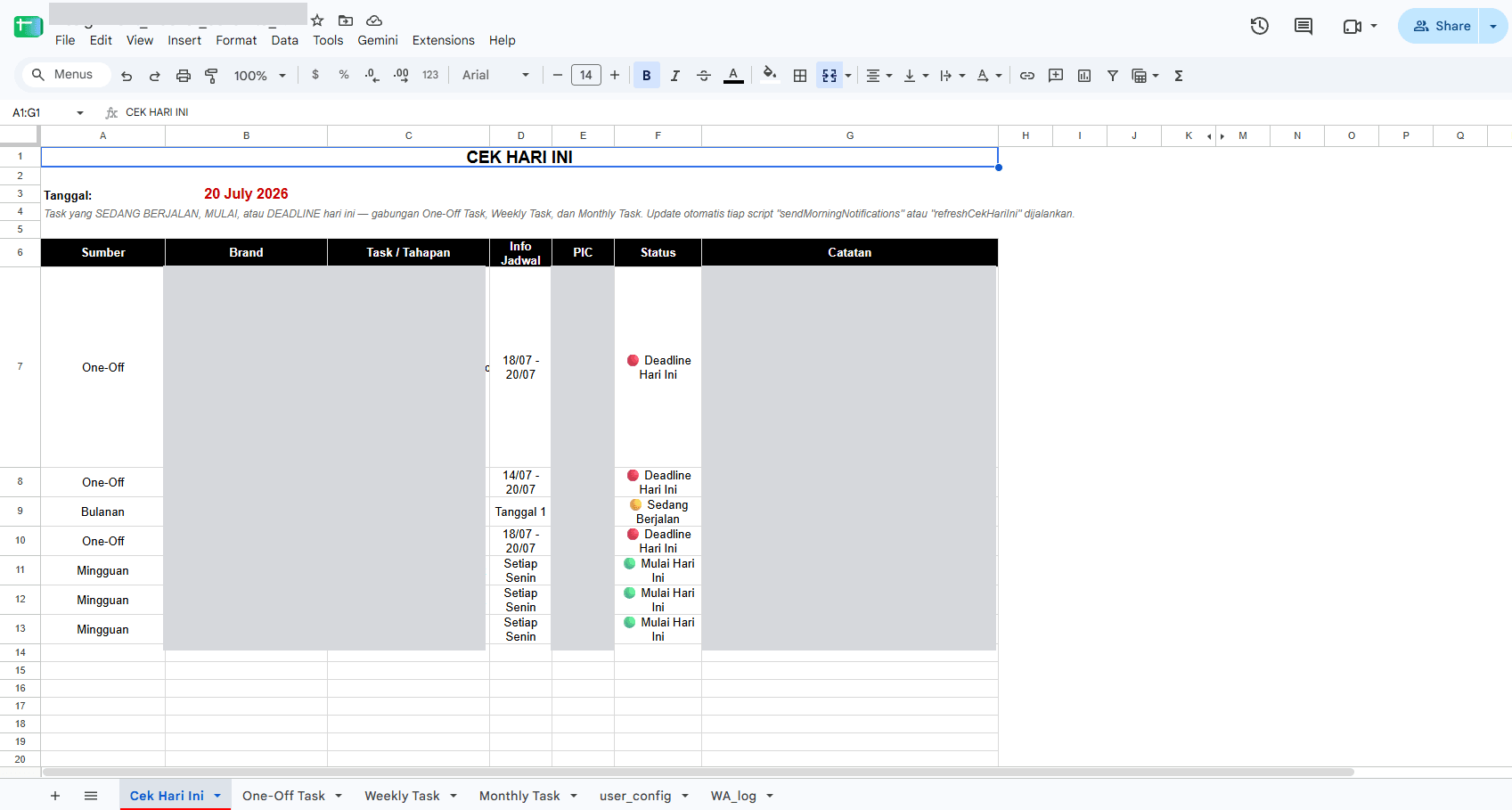
Every morning that summary goes out to the team on WhatsApp. The send time and the list of recipients are set in one settings tab, so they can be changed without touching code.
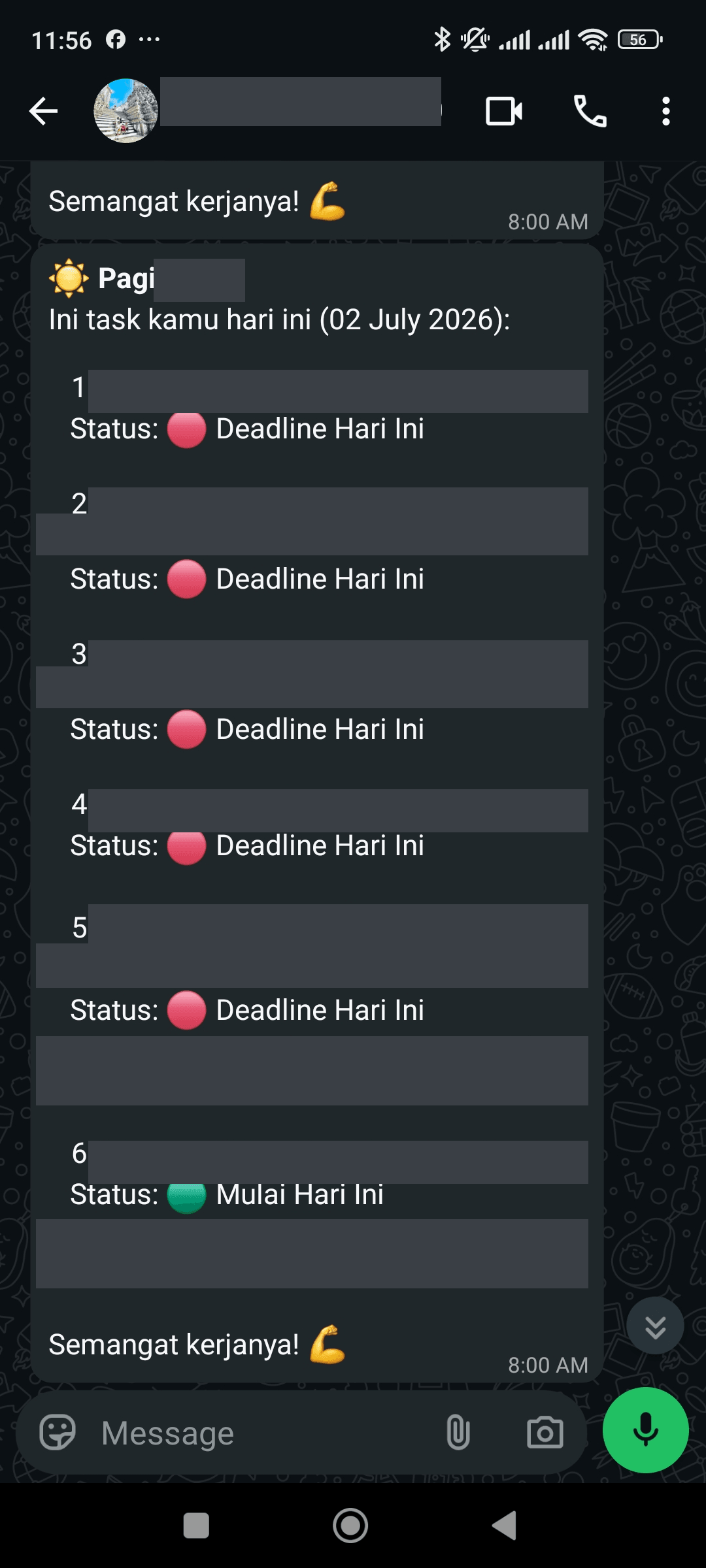
The scheduling engine is a time-driven trigger in Google Apps Script. According to the Apps Script triggers documentation, a script can run automatically at a set hour every day, so no server of your own is needed. If the data starts getting large, check the Sheets limits too, in When Google Sheets Is Enough as a Web App Database, and When to Move On.
What to decide before building it
- One source of data. Every task has to be recorded in the sheet, not some of them in the chat. Otherwise the reminders are incomplete.
- Required columns. At least the owner, start date, deadline, and status.
- Who updates the status. If statuses never change, the reminder keeps showing tasks that are actually done.
- How WhatsApp messages get sent. Automatic sending needs the official WhatsApp Business API or a third-party gateway, and each comes with different costs and risks. The comparison is in WhatsApp API Billed Per Message: Stick With It or Switch to an Unofficial Gateway?.
When you need a real project management app
The Sheets plus WhatsApp pattern suits teams of up to a dozen or so people with similarly structured tasks. If tasks branch out, need attachments and discussion per task, or involve many teams and clients, a project management app or a custom dashboard is usually a better fit. At the same agency, this WhatsApp reminder actually complements the content production dashboard where the team does its main work.
Wrapping up
A WhatsApp group isn't wrong for managing tasks, as long as the team is small and the tasks are simple. Once tasks start getting buried in the chat, don't force the team onto a new app right away. Move the data into one place first, and let WhatsApp stay the place where reminders arrive.
If you'd like your team's task reminders sent automatically on WhatsApp from data you already have, tell me how your team works.
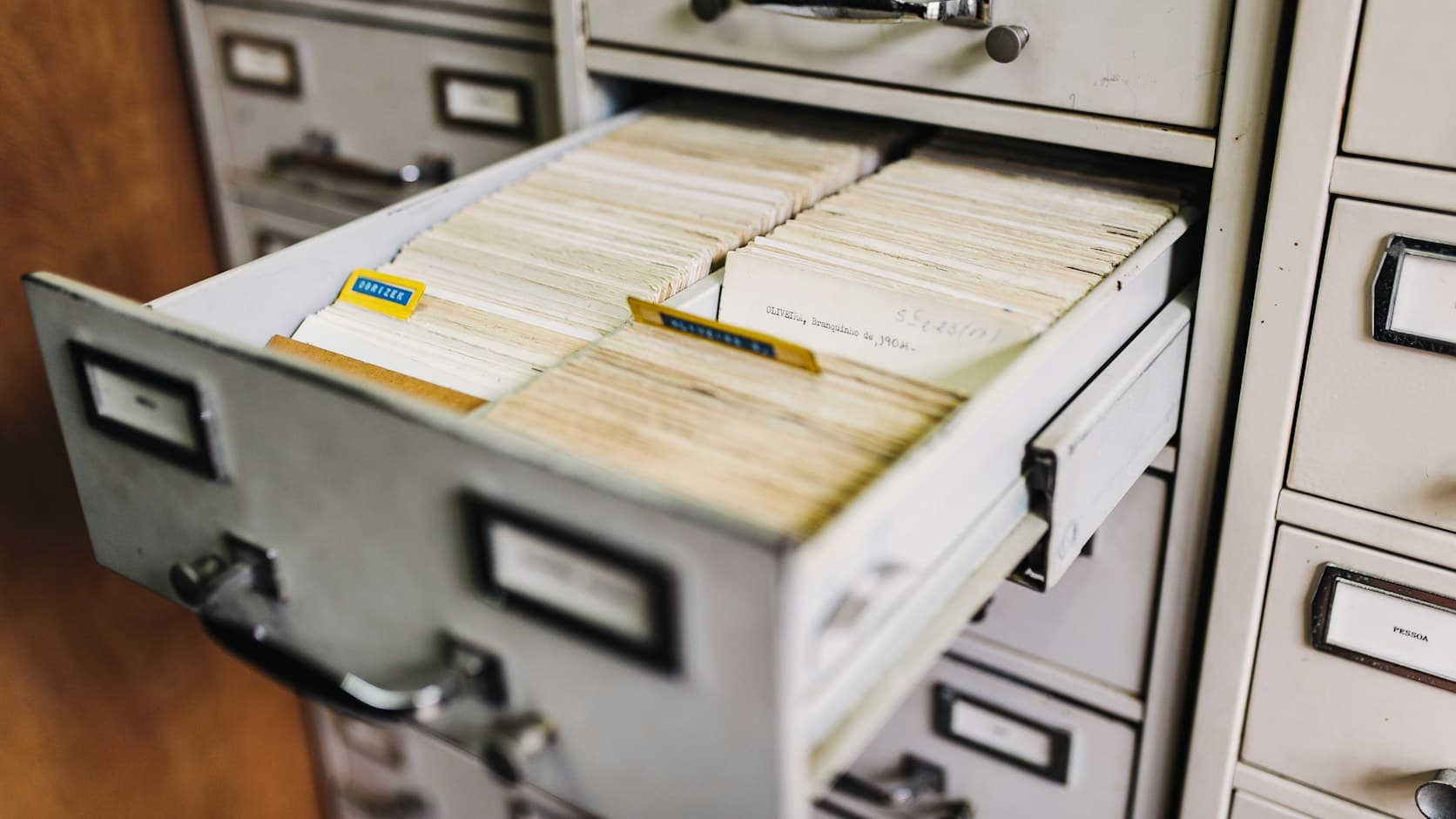
The main photo is from Unsplash by ROBIN WORRALL, used under the Unsplash License. The screenshots come from a real project, with names and task details masked.
Is your team still doing something by hand?
Tell me about it, and let's find the fix together.
More notes
Is It Safe to Upload Customer Data to ChatGPT or Claude? What Indonesia's UU PDP Says
Customer data is personal data, so Indonesia's UU PDP applies when you paste it into AI. The relevant articles, personal versus business plans, and how to do it safely.
Read the note
ChatGPT Work vs Dots, When to Use Which?
Work finishes the tasks you start, a dot keeps work moving. How ChatGPT Work and Dots differ, which plans you need, and example tasks for each.
Read the note