Team Task Reminders Over WhatsApp, Weekly to One-Off, Managed From One Place
Case study of a team task reminder system over WhatsApp: weekly, monthly, and one-off tasks tracked from a single Google Sheet, sent automatically through Wablas, with settings you can change yourself without touching code.
- Client
- Social media agency
- Role
- Project Manager
- Tools
- Wablas, Google Apps Script, Google Sheets
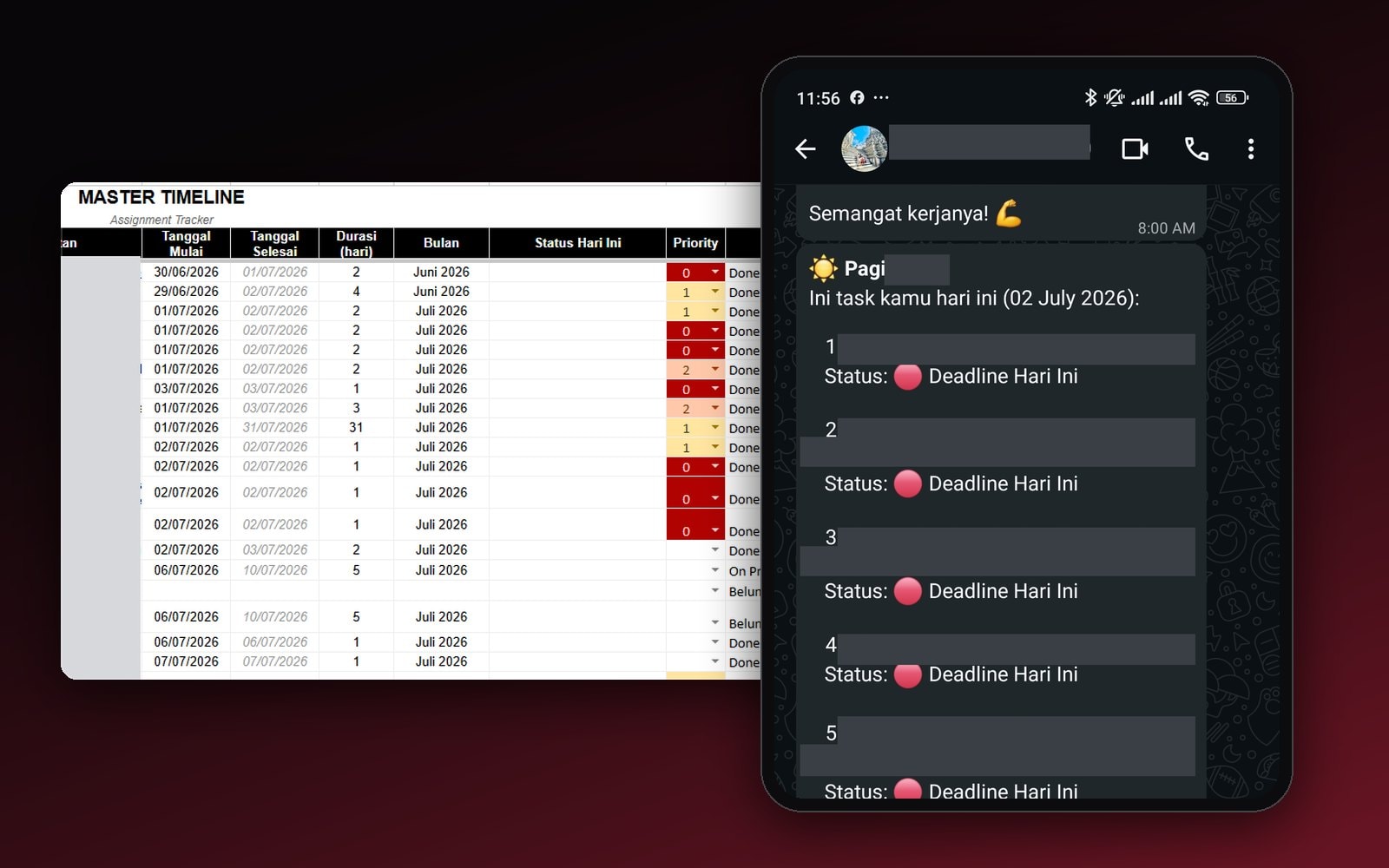
At the agency I worked at, the team's tasks followed different patterns: some recurred every week, some every month, and some were just a one-off for a single project. All of it was already tracked neatly in Google Sheets, but the sheet itself was passive, someone had to open it and check for themselves to know what was going on that day.
I built a reminder layer on top of that same sheet, one that automatically sends the team a WhatsApp message every morning about whatever's in progress, just starting, or due that day. The tool itself is simple, but it's extremely adjustable, and the important part is that changing the schedule never requires touching a single line of code.
The problem: tasks piling up in Sheets, with nothing proactively flagging them
- Every task, weekly, monthly, and one-off, lived in the same Sheet, but it was passive. Nothing proactively flagged what was due or just starting.
- Each task type followed a different pattern. Building reminders manually for each one would get messy and easy to miss.
- The schedule and who needed to be notified changed often. If every small change meant asking a developer, the tool would be too slow to actually use.
The approach: the same sheet, with a notification layer on top
- 1Tasks get loggedIn the One-Off, Weekly, or Monthly tab, depending on type
- 2A script runs every morningCollecting tasks in progress, just starting, or due that day
- 3Sent over WhatsAppThrough Wablas, straight to the team
- 4Managed from the sheetSchedule and recipients live in the user_config tab, no code involved
What I built
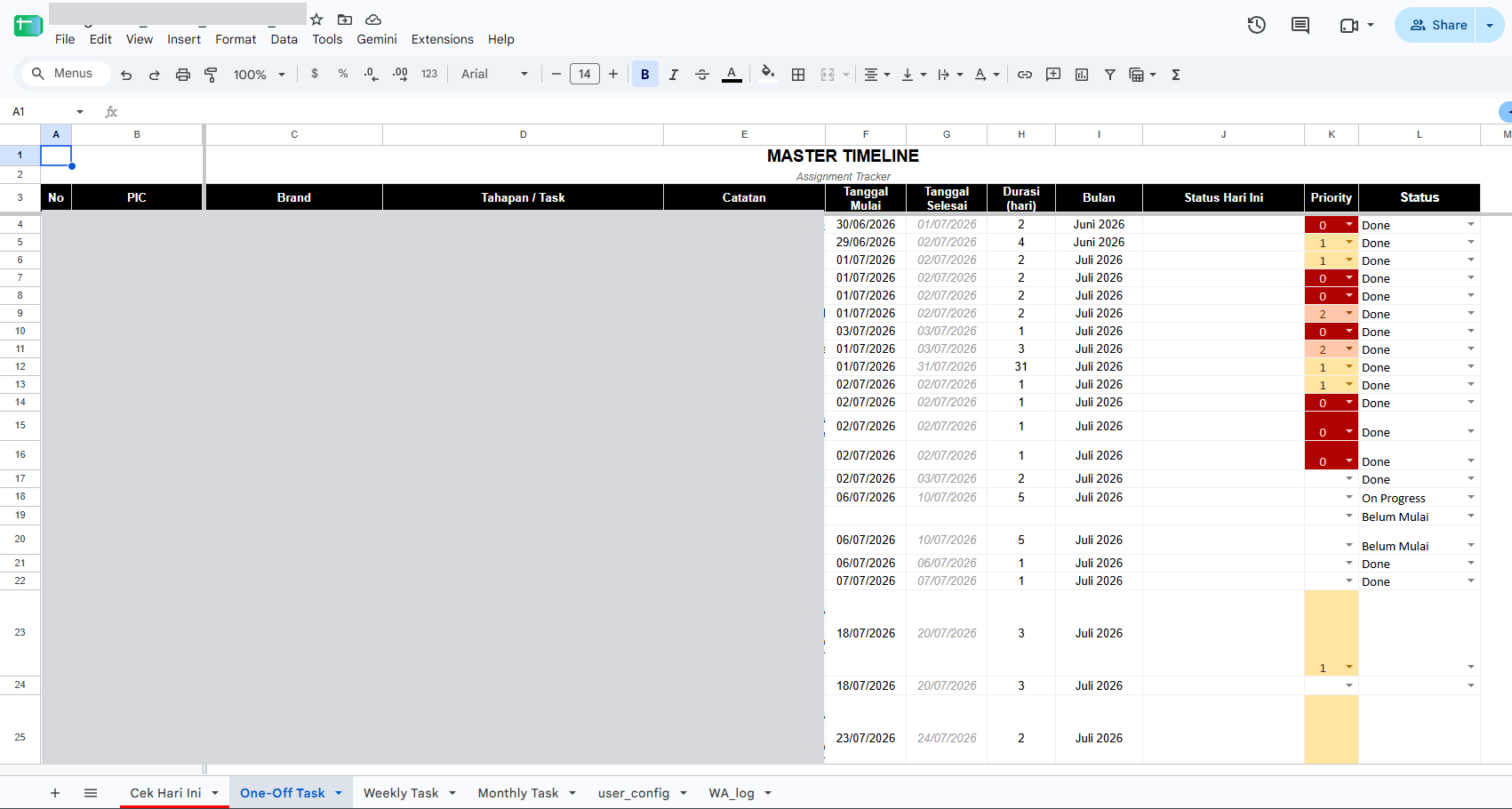
Every task type, one master timeline
Tasks are logged in separate tabs by type, each with the person in charge, the brand, start and end dates, duration, priority, and status. This becomes a single source of data, read by both the team and the reminder script.
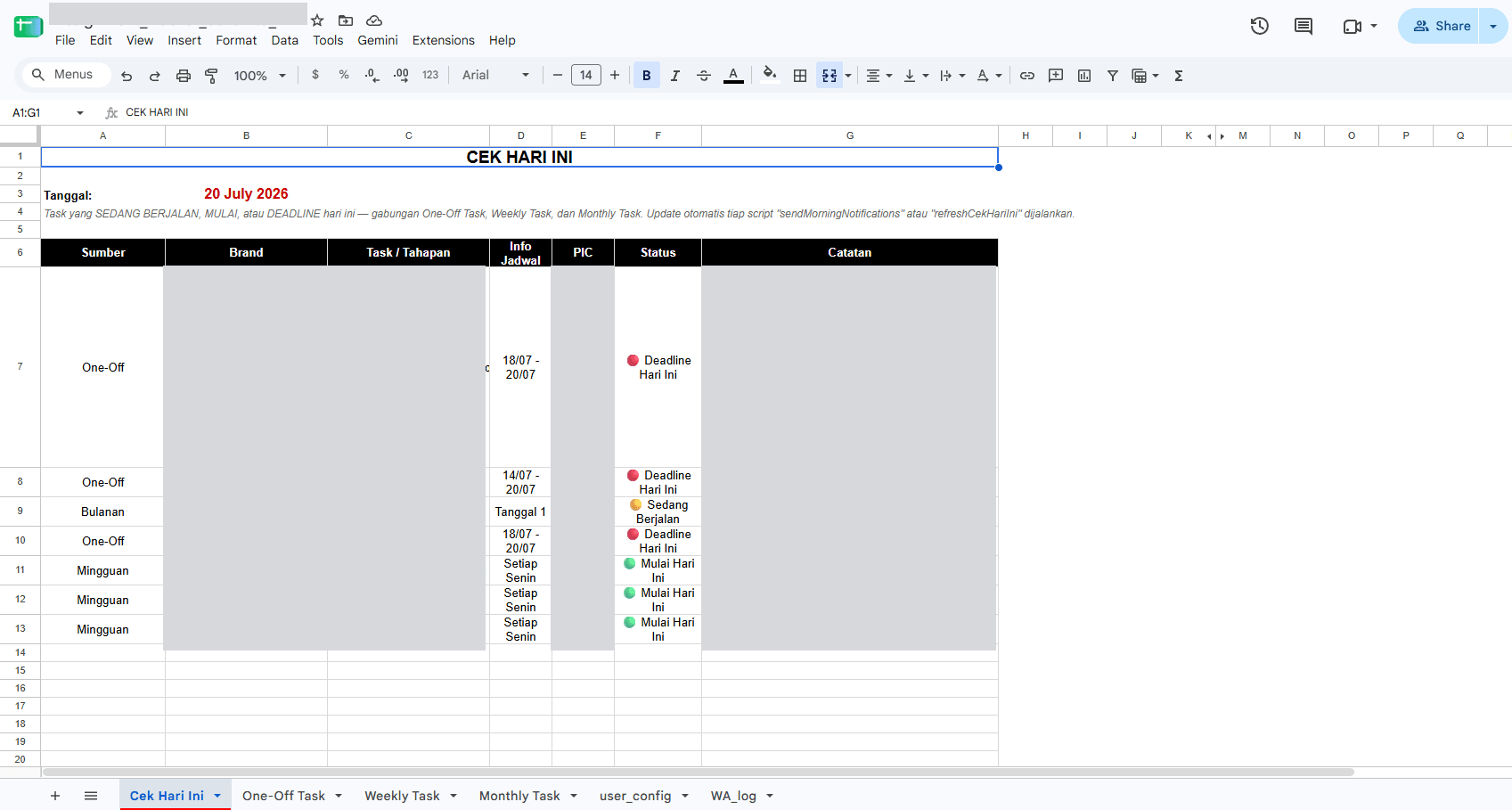
"Today's Check": three task types merged automatically
This tab is the core of it. Every morning, the sendMorningNotifications and refreshCekHariIni scripts run, pulling tasks from all three tabs (One-Off, Weekly, Monthly) that are in progress, just starting, or due that day, and compiling them into a single summary.
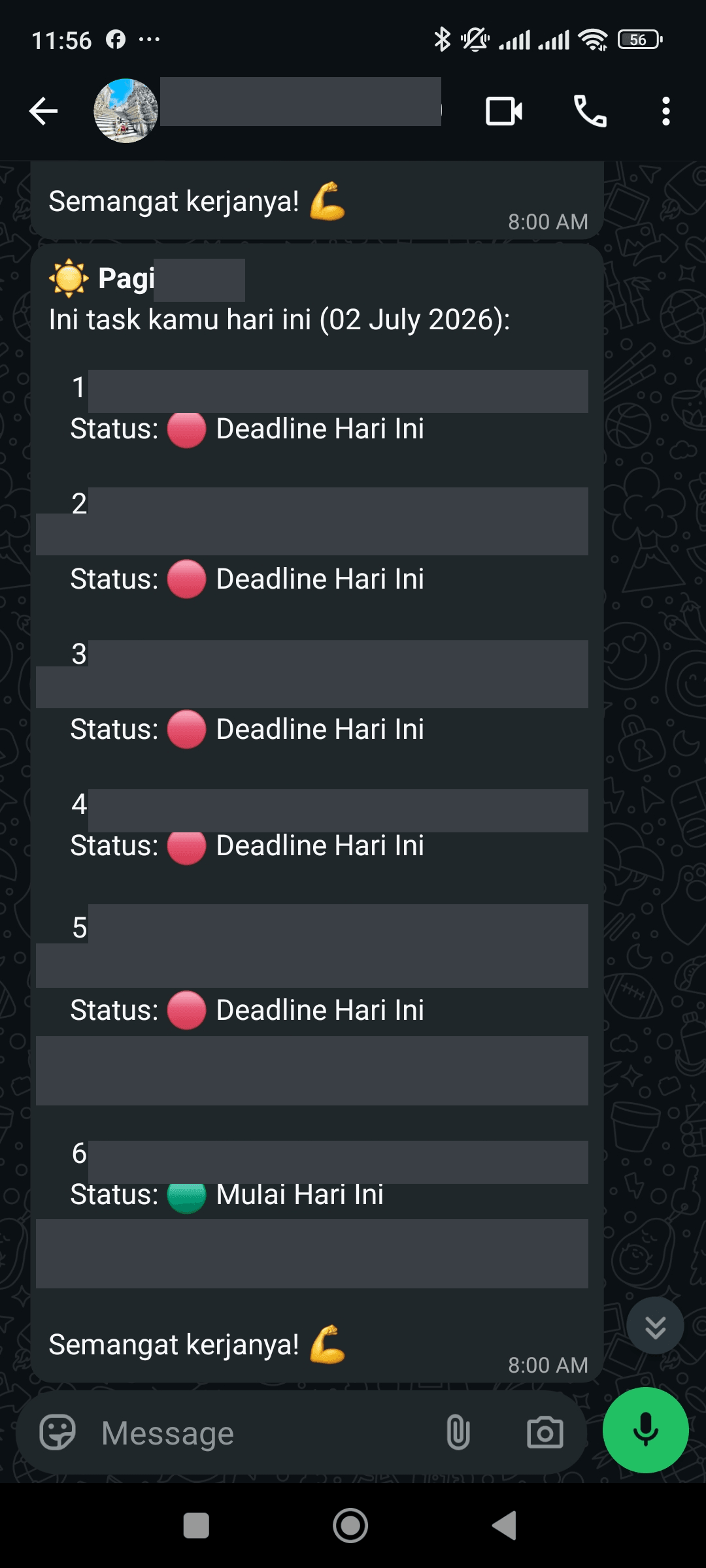
The message itself, straight to the team's WhatsApp
Here's what the message looks like every morning: that day's tasks, each with its status, and a note where there is one. This is the format sendMorningNotifications sends through Wablas to the team's WhatsApp.
Adjustable from the sheet, not from the code
This is the part that matters most: who receives the reminders, what time they go out, and other settings all live in the user_config tab. Any change just means editing a cell there, no need to open the code or ask a developer.
There's also a WA_log tab that records every message sent, so anything can be traced back if it ever needs checking.
Results
Before
- Tasks scattered across one passive sheet
- Nothing proactively flagged tasks that were due or just starting
- Changing the reminder schedule meant asking a developer
After
- Reminders sent automatically to the team's WhatsApp every morning
- Weekly, monthly, and one-off tasks merged into a single daily summary
- Schedule and recipients changed directly in the sheet, no code
- Task types tracked: One-Off, Weekly, and Monthly
- 3 types
- Needed to touch to change the schedule or recipients
- 0 code
- Automatic reminder sent every morning
- 1x a day
Wrapping up
This tool complements the content production dashboard I also built at the same agency. If the dashboard is where the team does the work, this tool makes sure nobody forgets to open it. Sometimes the automation that actually gets used isn't the most sophisticated one, it's the one the people using it every day can adjust themselves.
Is your team still doing something by hand?
Tell me about it, and let's find the fix together.
More case studies
 AI & Automation
Retail business
Thousands of WhatsApp Chats, a Two-Person Team: Letting the Owner Monitor Without Reading Everything
The owner gets an automatic recap every night at 9pm covering closed deals, complaints, and follow-ups, without reading every chat one by one.
Read case study Marketing & WebAI & Automation
Car ceramic coating shop
From Google Sheets to a Booking and Order Tracking System for a Ceramic Coating Shop
Booking, work progress, and payments now live in one system, customers can check their car's coating progress themselves without calling the shop.
Read case study