From One Sheet per Brand to One Social Media Content Production Dashboard
Case study: a social media management dashboard for an agency, running multi-brand content production from brief to upload, built with Sheets and Apps Script.
- Client
- Social media agency
- Role
- Project Manager
- Tools
- Google Apps Script, Google Sheets, Google Drive, Google Docs
- Duration
- 1 week, finalized within 1 month
I helped a social media agency manage content for several brands at once, in video, single-image, and carousel formats for Instagram and TikTok. Every piece of content passes through many stages and many people: the project manager, the production PIC, and the writer.
I built a social media management dashboard on Google Apps Script, Google Sheets, Google Drive, and Google Docs. Every brand and the entire production flow, from brief to uploaded content, now lives in one place.
The problem: one brand, one spreadsheet
Before, every brand had its own spreadsheet. Every time the production team switched brands, they had to switch sheets too. The more brands they handled, the more often they switched files, and their time went into jumping between sheets instead of producing content. The team burned out before the work even started.
The approach: every brand in one production flow
Instead of adding a new sheet for every brand, I brought every brand into one dashboard with the same production flow:
- 1QC BriefThe brief is checked before production
- 2ShootingContent production
- 3EditEditing through to final
- 4QC & ApprovalChecked by the team and approved
- 5UploadGoes live on Instagram and TikTok
Google Sheets became the database for every brand, Google Apps Script ran the app and its automation, Google Docs stored the briefs, and Google Drive stored the content assets. At every stage, the team just presses Accept to move to the next stage, or Decline to send the content back to the previous one.
What I built
A dashboard per production stage
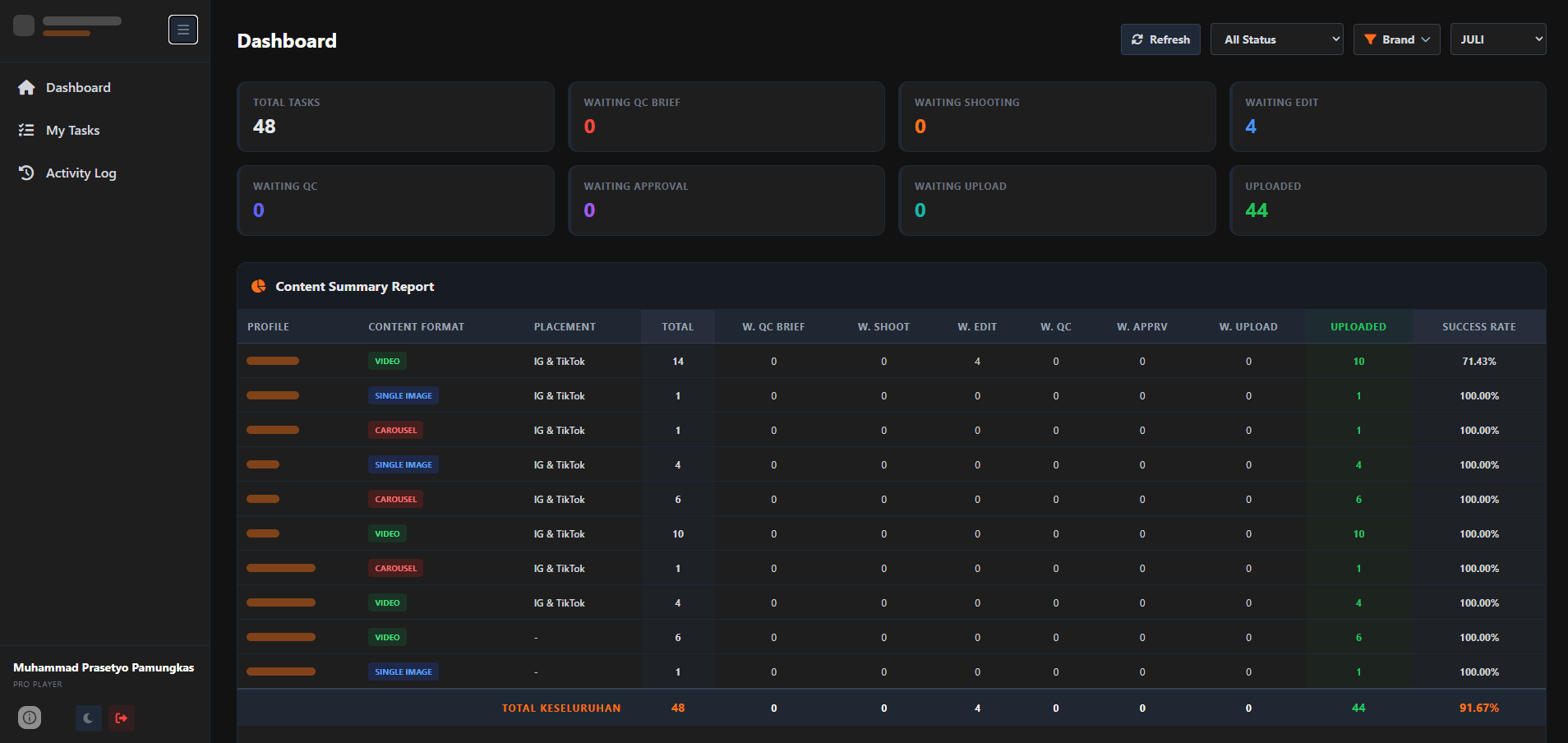
The main page shows how much content is at each stage, from waiting QC brief to uploaded. The data can be filtered by status, brand, and month. Below it sits the Content Summary Report per brand, complete with content format, placement, the count at each stage, and the success rate.
The team's workload, clearly visible
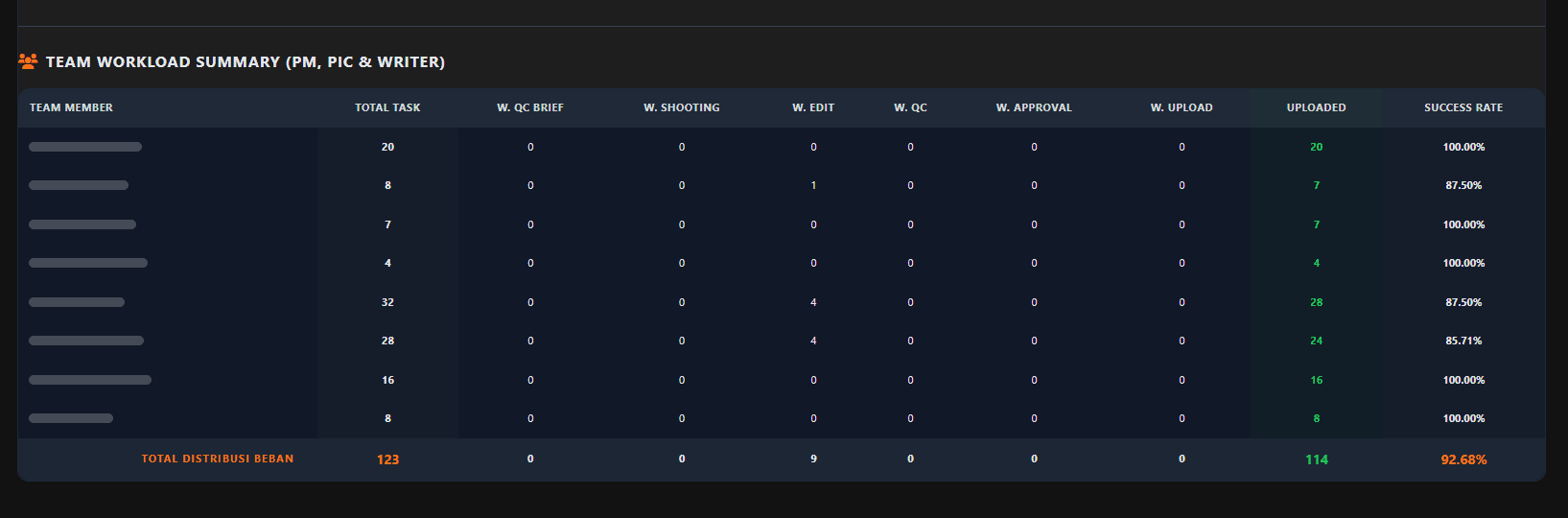
The Team Workload Summary rolls up the task count for every PM, PIC, and writer at each stage, along with each person's success rate. Work can now be assigned based on data, not guesswork.
My Tasks: read the brief and upload in the same place
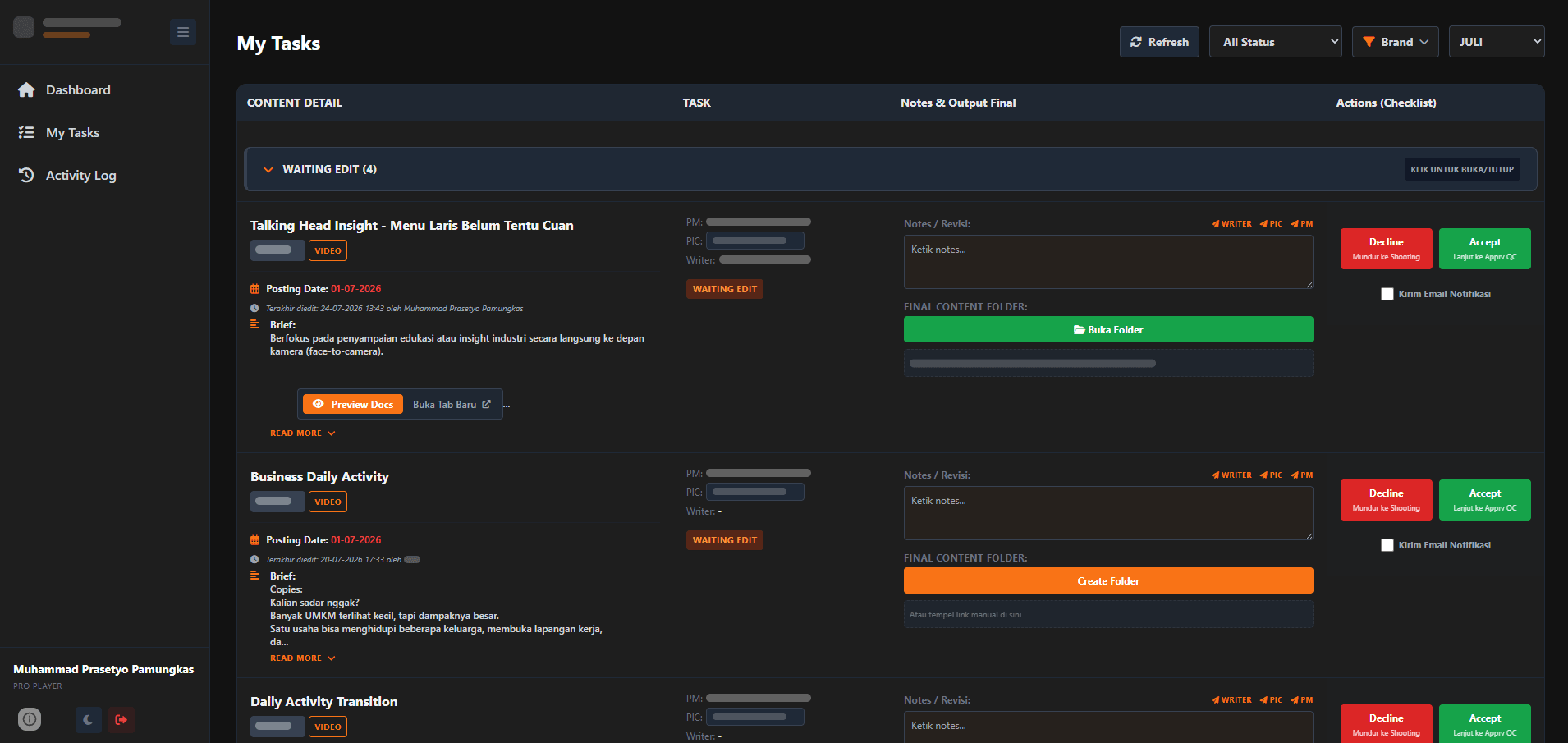
Every team member has a task list grouped by status. One row holds the brief, posting date, PM, PIC, and writer, revision notes with a notification button to the writer, PIC, or PM, and the final content folder.
I made Google Drive folders generate automatically in a clean structure: by brand, then year, month, and date. The team just uploads content there without creating and naming folders one by one. When they press Accept or Decline, the team can also send a notification email at the same time.
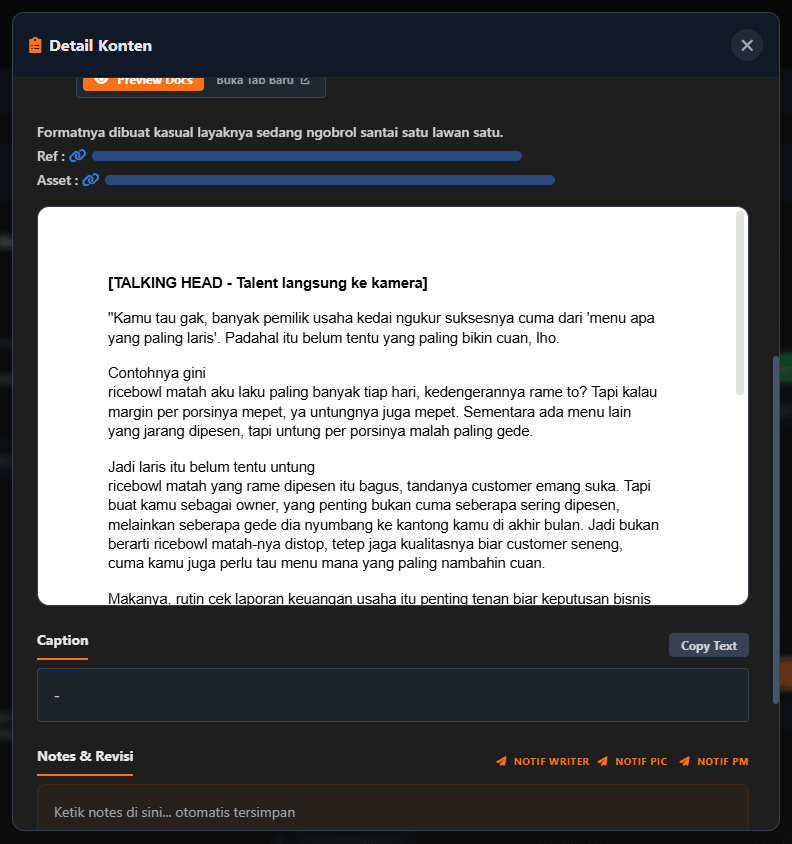
Every content detail in one window
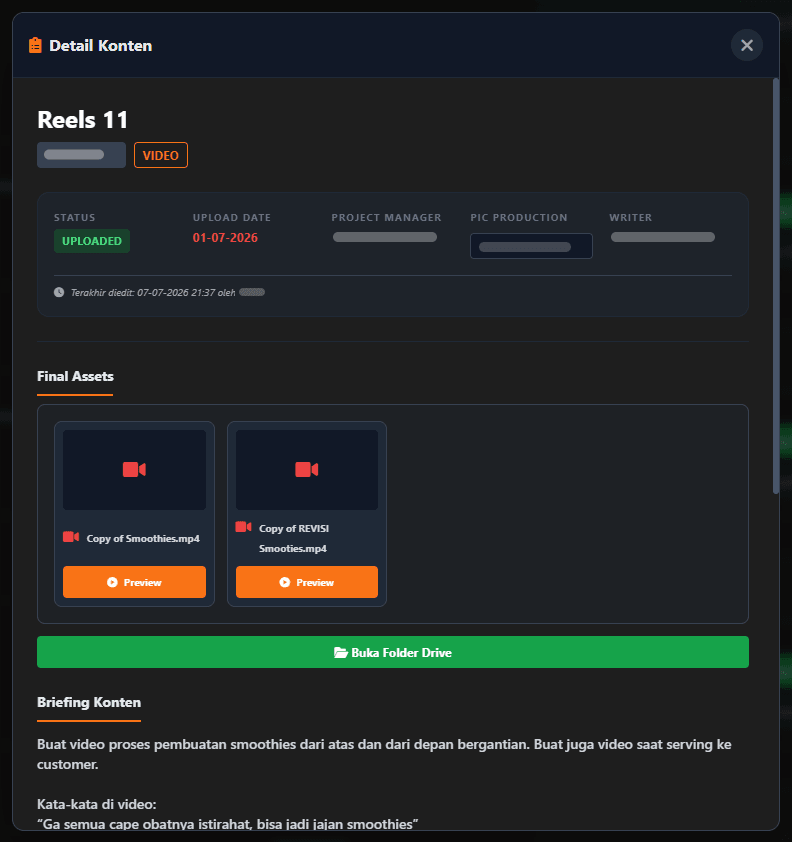
Opening a piece of content shows its status, upload date, and the team working on it. Final assets from the Drive folder can be previewed directly, the brief document appears without switching tabs, the caption can be copied with one click, and revision notes save automatically.
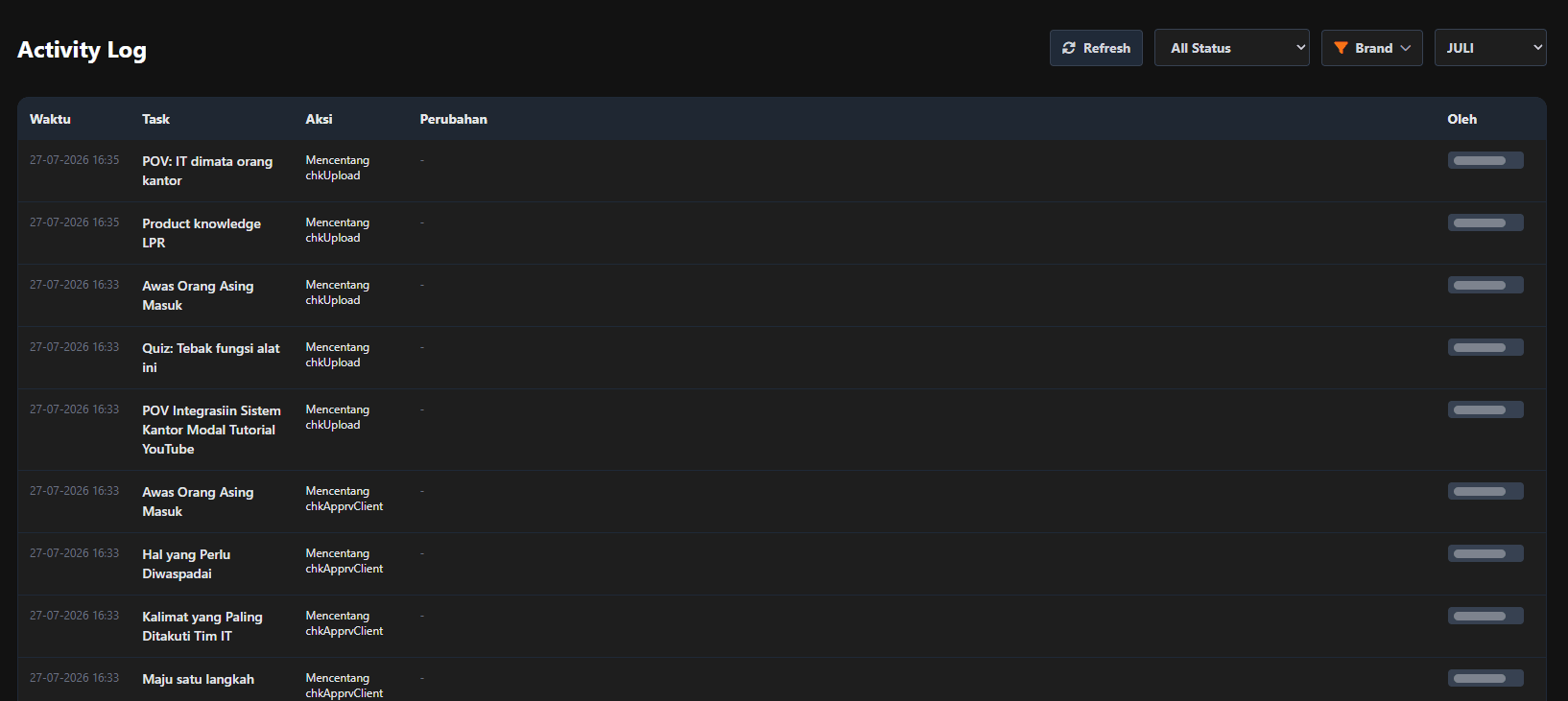
An activity log for every change
Every action on the dashboard is logged: the time, the content, the action taken, and who took it. Whenever something needs tracing back, the history is always there.
Results
Before
- One brand, one spreadsheet
- The production team constantly switching between sheets
- Time spent switching files instead of producing content
After
- Every brand in one dashboard
- Reading the brief and uploading content in the same place
- Drive folders created automatically by brand, year, month, and date
The production team no longer needs to switch between sheets. Everything is in one place: the brief is read on the dashboard, content is uploaded from the dashboard, and the folders are already organized automatically. The project manager can also check every piece of content's status and everyone's workload at any time.
- Content uploaded in July
- 44/48
- Team-wide success rate in July
- 92.68%
Reflection
I finished the first version in one week, and the team started using it right away. After that I kept improving the dashboard as it ran, until the final version was done within a month. Building it this way, in stages, let the team feel the benefit sooner, without waiting for everything to be perfect first.
Is your team still doing something by hand?
Tell me about it, and let's find the fix together.
More case studies
 AI & Automation
Social media agency
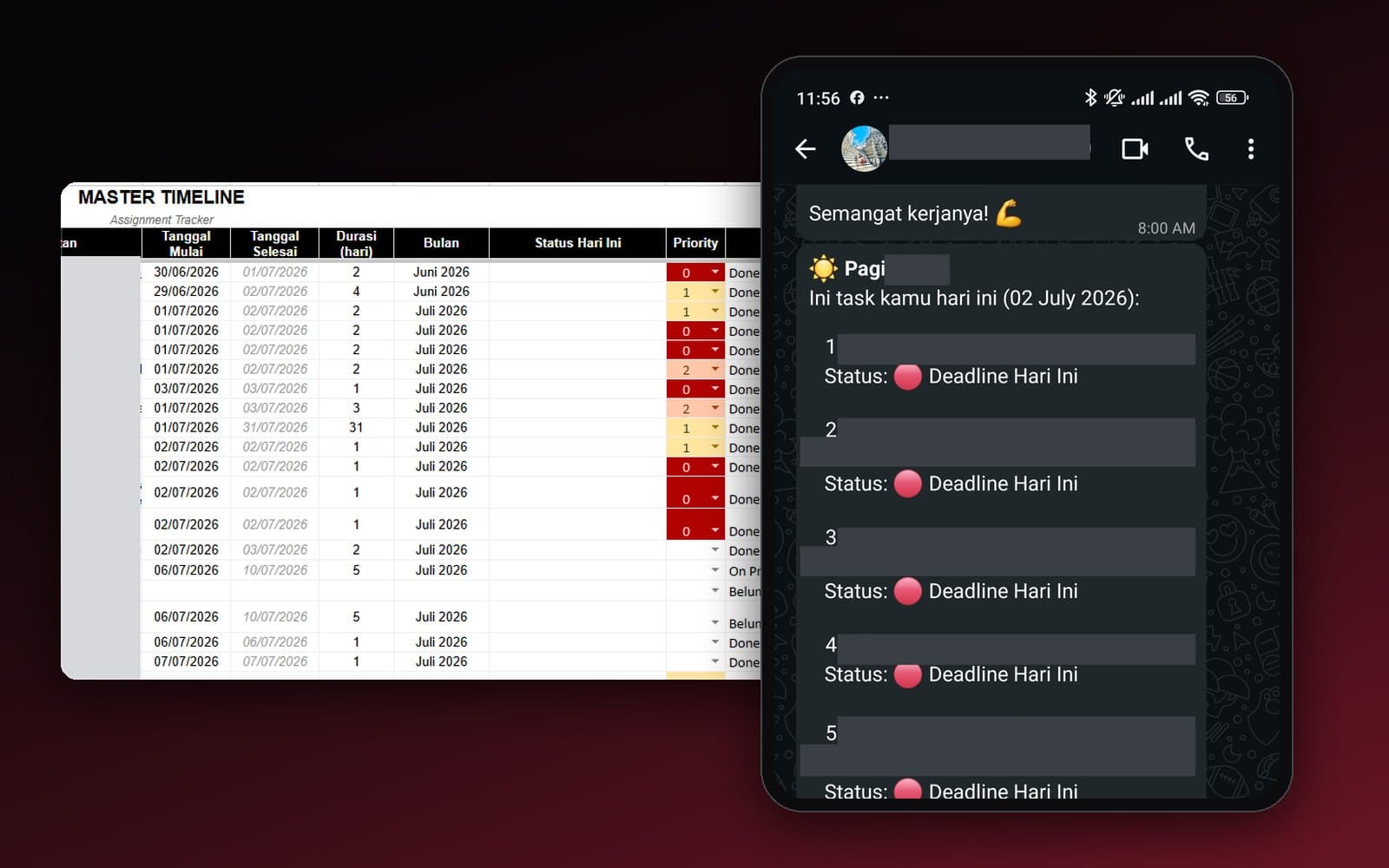
Team Task Reminders Over WhatsApp, Weekly to One-Off, Managed From One Place
Weekly, monthly, and one-off task reminders sent automatically to the team's WhatsApp every morning, with settings the team can change themselves in the sheet, no developer needed.
Read case study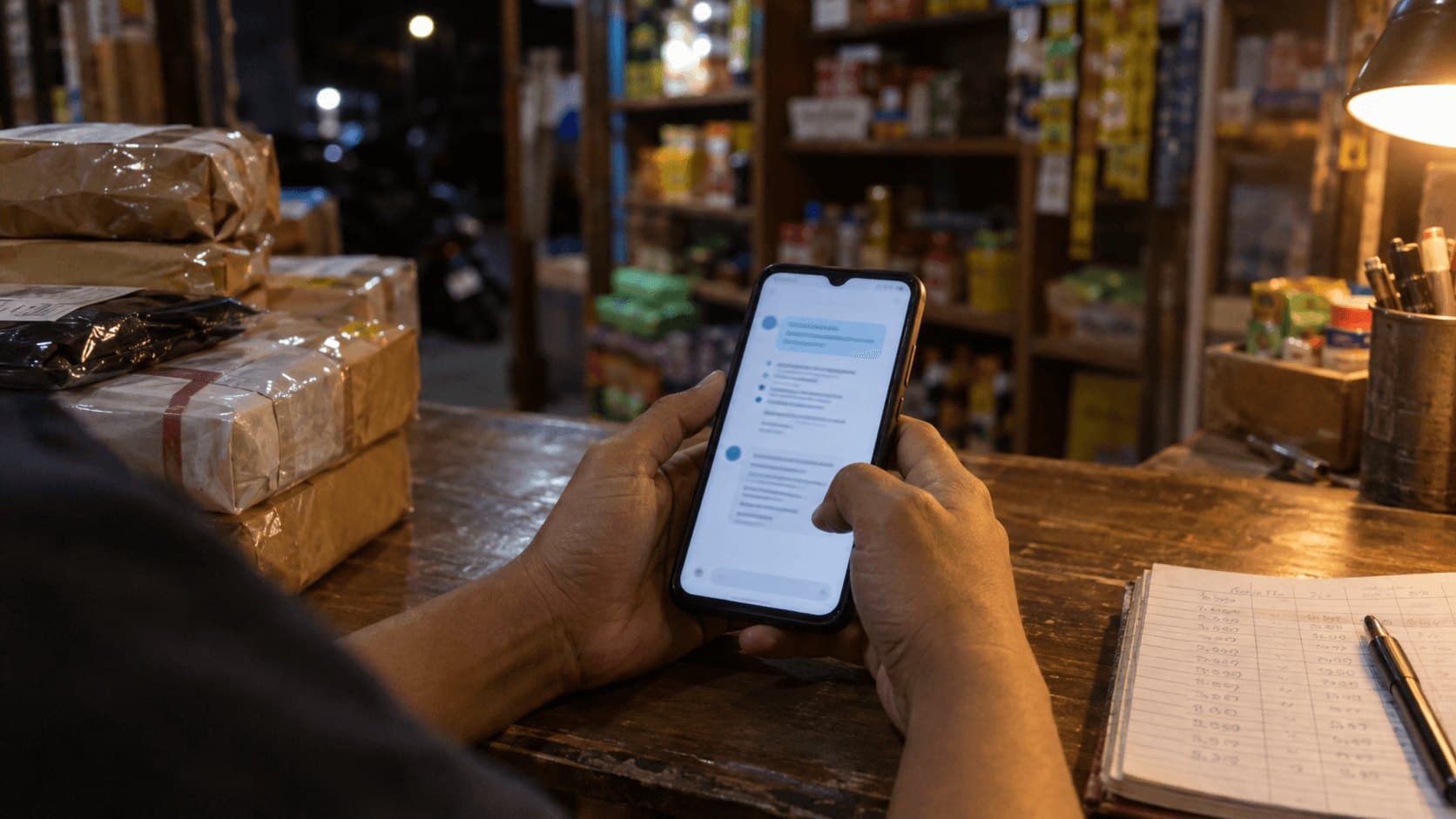 AI & Automation
Retail business
Thousands of WhatsApp Chats, a Two-Person Team: Letting the Owner Monitor Without Reading Everything
The owner gets an automatic recap every night at 9pm covering closed deals, complaints, and follow-ups, without reading every chat one by one.
Read case study