Thousands of Certificates, Payment Reminders and Payslips Sent Automatically From Google Sheets
Case study: cloud automation for a training provider, generating thousands of certificates from Google Sheets and Slides, then sending payment reminders, e-certificates and payslips through Gmail.
- Client
- Training provider
- Role
- Automation Engineer
- Tools
- Google Apps Script, Google Sheets, Google Slides, Gmail, Google Drive
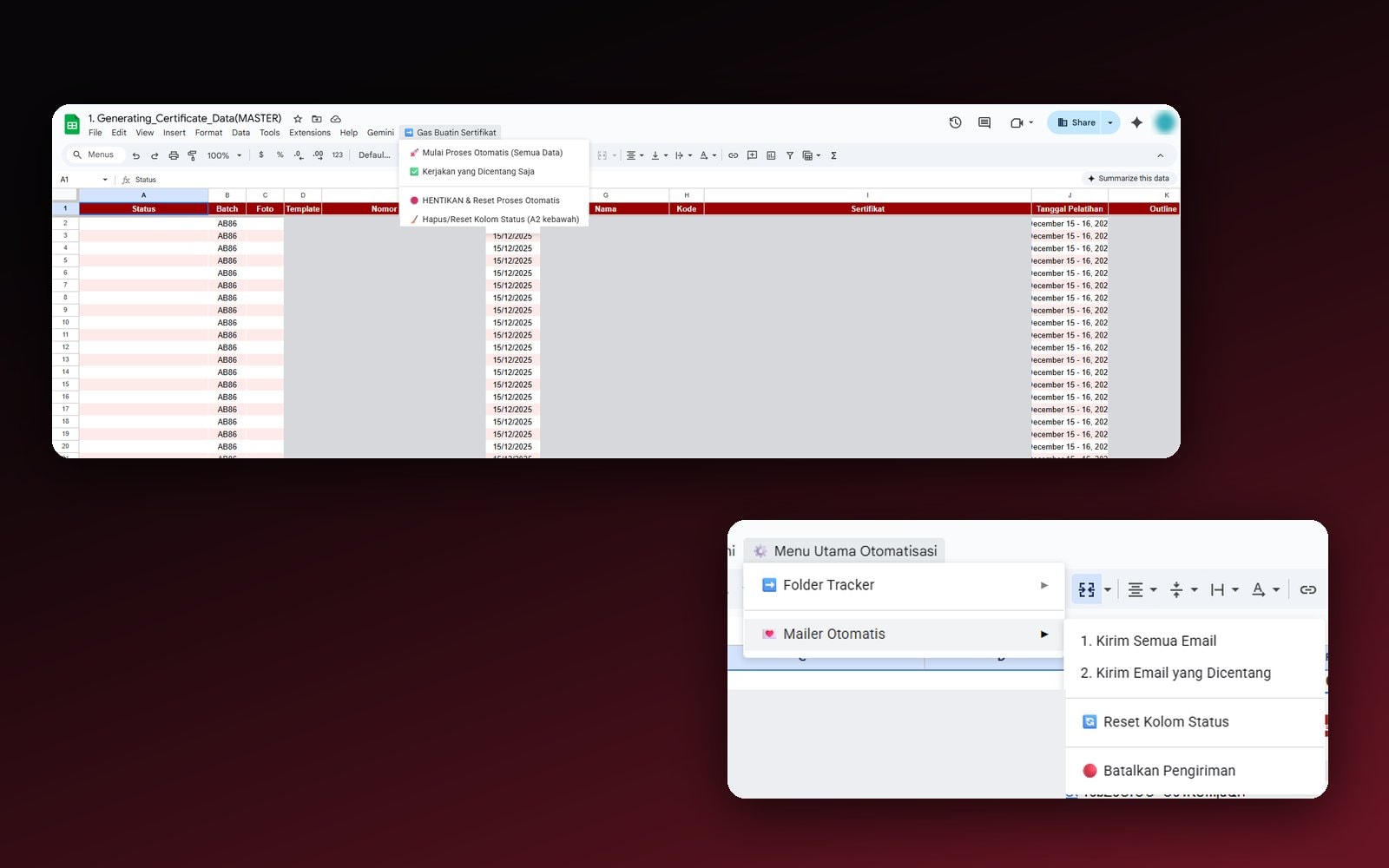
A training provider issues thousands of certificates to participants every period. The process depended on high-spec office computers and error-prone manual input, so the company kept spending on hardware.
I moved the whole certificate process to the cloud with Google Apps Script. After that, I automated the repetitive communication too: payment follow-up emails, e-certificate delivery and employee payslips. The company's name and all participant data in this case study are anonymized.
The problem: certificates tied to one computer
Producing thousands of certificates the old way needed a powerful computer and many manual steps. Every step was a chance for a typo, and every extra batch meant more admin time.
Before
- Participant data typed into Excel
- Word template, exported through mail merge
- Files renamed one by one
- Uploaded to Google Drive by hand
After
- Data in Google Sheets as the single source
- Google Slides template, exported automatically by Apps Script
- File names generated automatically
- Saved straight into a structured Drive folder
What I did
One data source with its own menu
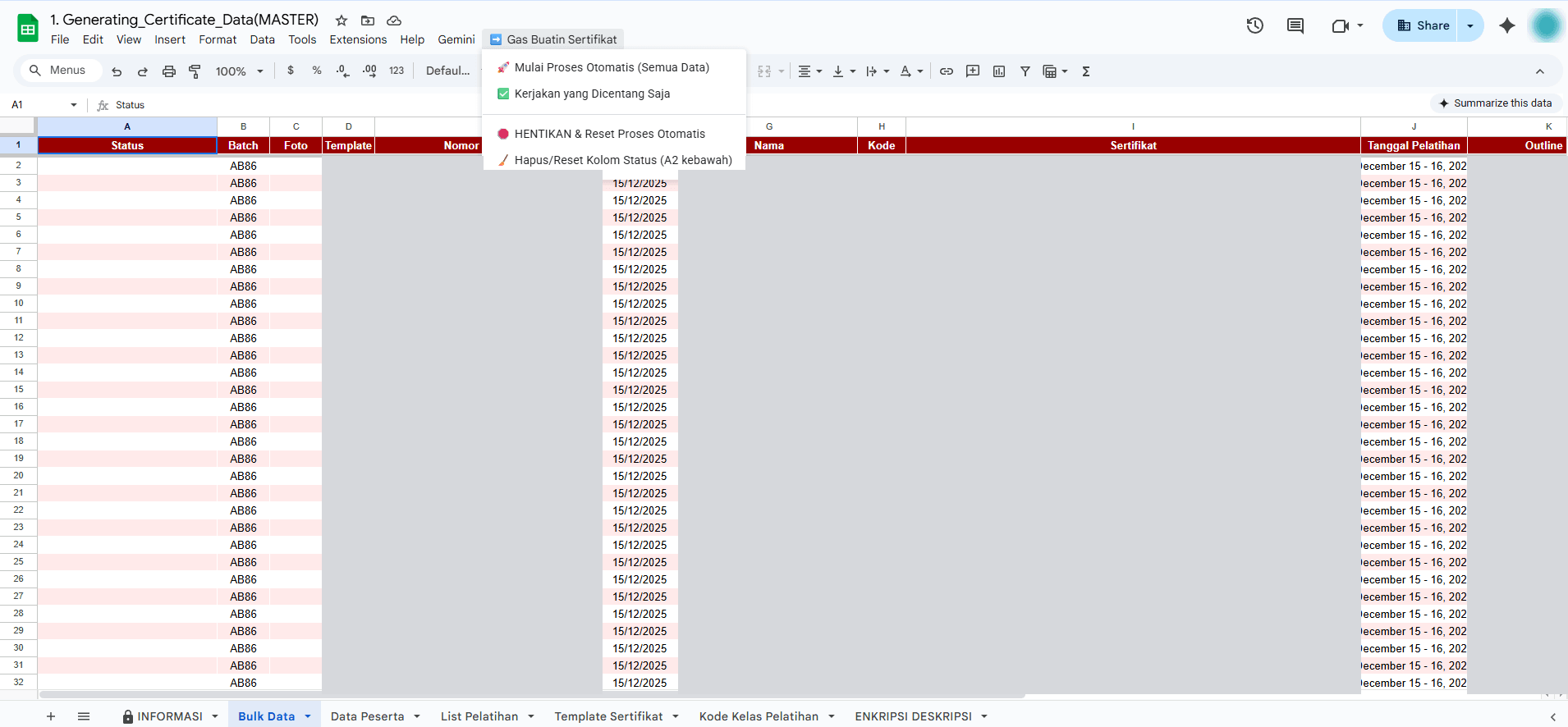
All certificate data lives in one sheet. Certificate numbers are built by a formula from the existing data, so nothing is typed twice. To control the process, I added a custom menu in Google Sheets: run everything, run only the checked rows, stop and reset the process, or clear the status column. Each row's status updates live while the bulk run is going.
Processed in batches so it never hits the time limit
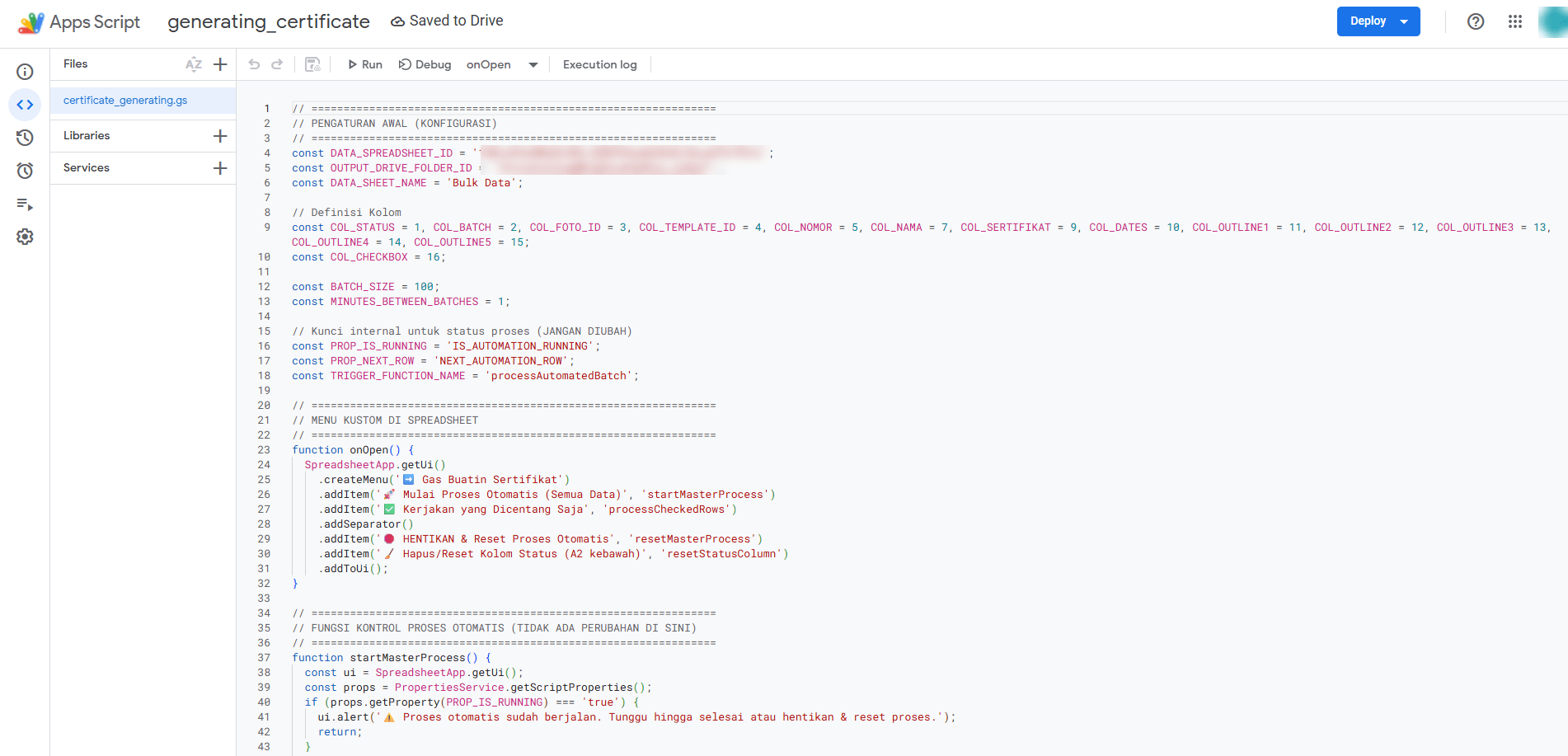
Apps Script has a 6-minute limit per execution, and thousands of certificates take longer than that. So the script processes 100 rows per batch, records the last row it finished, and schedules the next batch with a trigger a minute later. A flag also stops the same run from starting twice.
Results land neatly in Drive
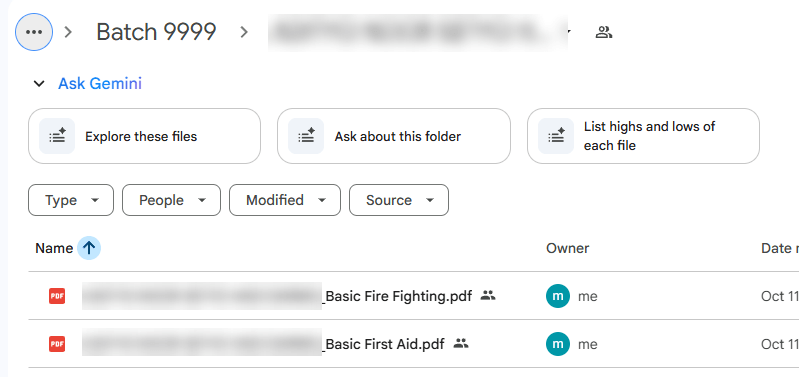
Finished certificates are saved automatically per batch and per participant, with consistent file names. The team no longer downloads, renames and re-uploads anything.
Payment reminders, e-certificates and payslips
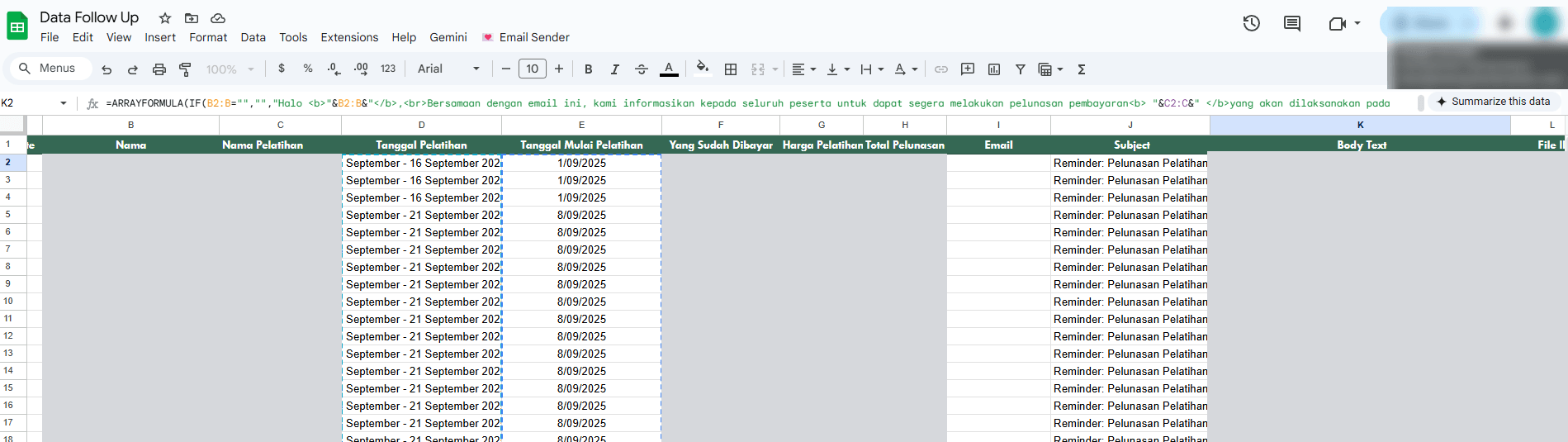
The second part connects Google Sheets to Gmail. From one place, the system:
- Sends payment follow-up emails to customers who haven't responded, based on the status in the sheet.
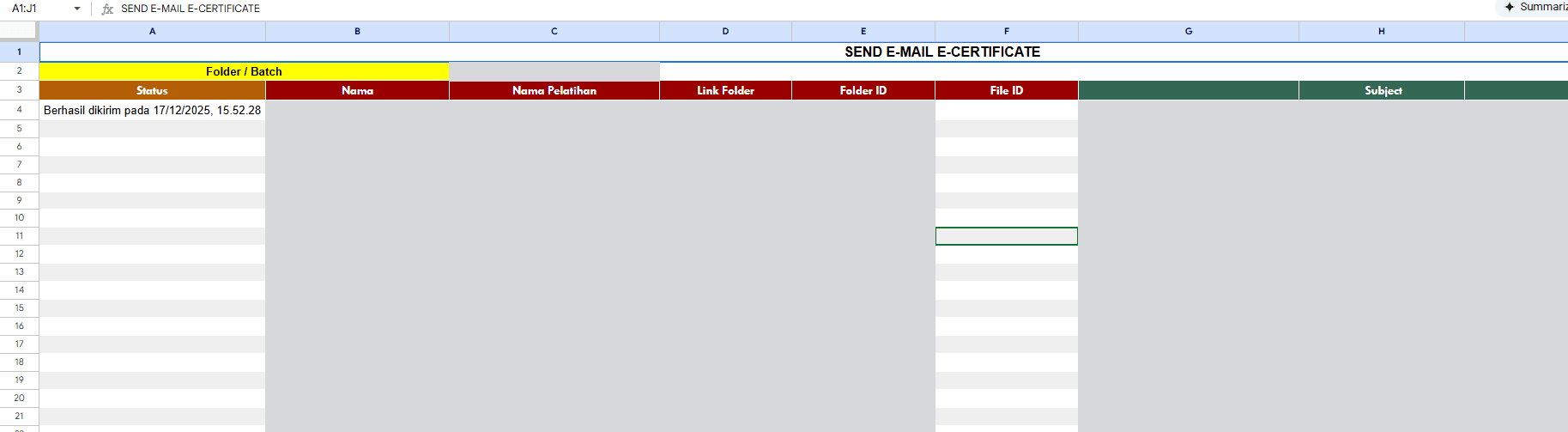
- Sends e-certificates to participants once the training is over.
- Distributes payslips to employees securely and in a structured way.
Each email is composed automatically from its row's data, and the sent status is written back to the sheet. Sending can run for every row or only the checked ones. That matters because Apps Script caps email recipients per day, at 1,500 for Google Workspace accounts according to its quota page.
Results
- Spending on high-end computers for certificate production dropped significantly, since the process runs in the cloud.
- Less admin time goes into repetitive tasks.
- Thousands of participant records are processed automatically and accurately.
- Payment response rates went up, manual errors went down, and important documents go out on time and consistently.
- Certificates generated automatically in the cloud
- 1000s
- Rows per batch, scheduled automatically
- 100
- Automatic emails: reminders, e-certificates, payslips
- 3
What I learned
The automation that matters most isn't always the most sophisticated one, but the one that removes the dependence on a single person or a single machine. Once the data sits cleanly in one sheet, the next steps, from generating certificates to sending emails, are just a matter of connecting them. I wrote about when Google Sheets is enough as a data source like this in When Google Sheets Is Enough as a Web App Database, and When to Move On.
Is your team still doing something by hand?
Tell me about it, and let's find the fix together.
More case studies
 AI & Automation
Social media agency
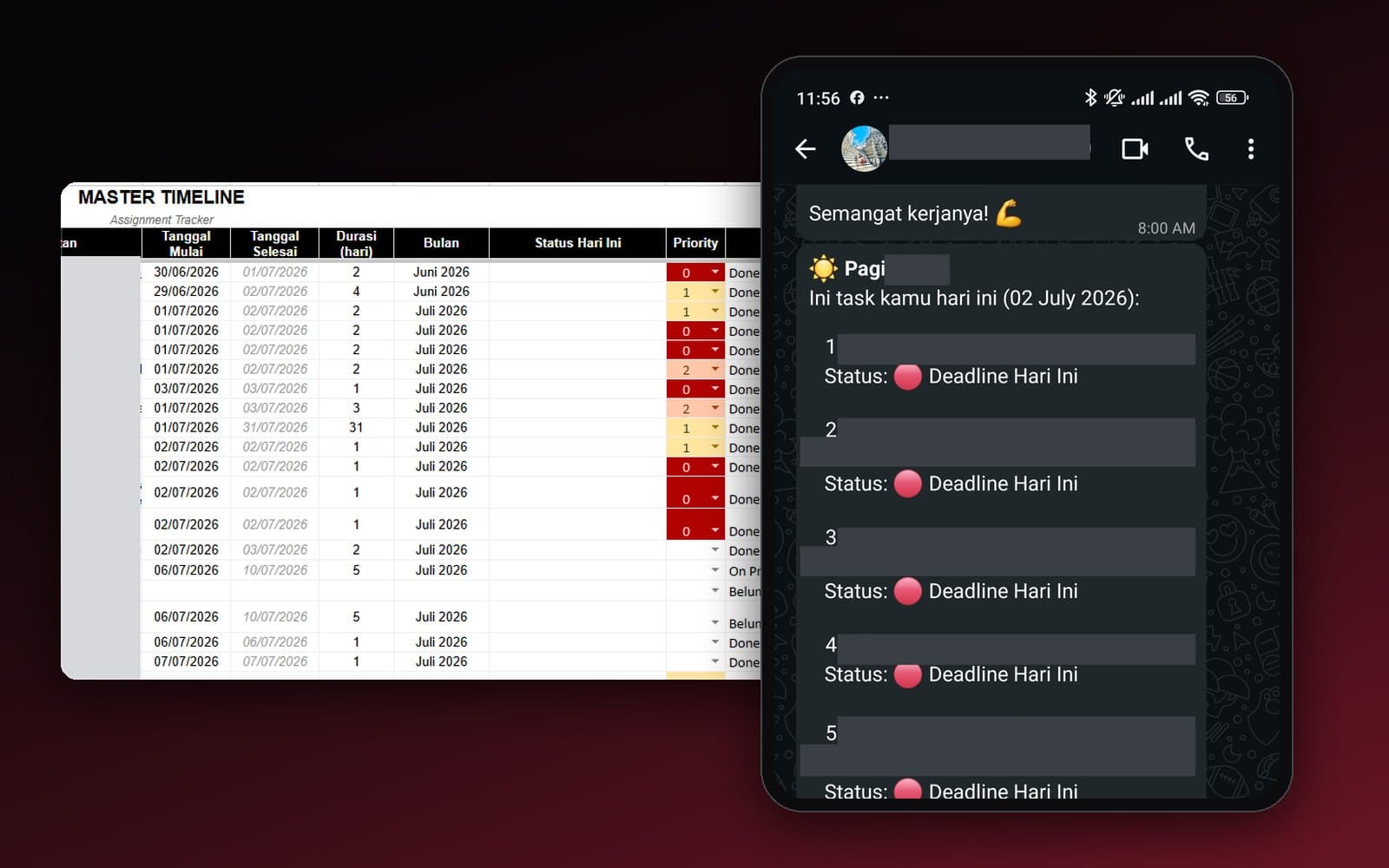
Team Task Reminders Over WhatsApp, Weekly to One-Off, Managed From One Place
Weekly, monthly, and one-off task reminders sent automatically to the team's WhatsApp every morning, with settings the team can change themselves in the sheet, no developer needed.
Read case study AI & Automation
Retail business
Thousands of WhatsApp Chats, a Two-Person Team: Letting the Owner Monitor Without Reading Everything
The owner gets an automatic recap every night at 9pm covering closed deals, complaints, and follow-ups, without reading every chat one by one.
Read case study