From Checking Documents One by One to Automatic Verification with Gemini AI
Case study: automatic document verification with Gemini 2.5 Flash (Vertex AI) and Google Apps Script, covering validation, data extraction, and file migration.
- Client
- Corporate client
- Role
- Full Stack AI Engineer
- Tools
- Google Apps Script, Google Sheets, Google Drive, Google Workspace, Vertex AI (Gemini 2.5 Flash)
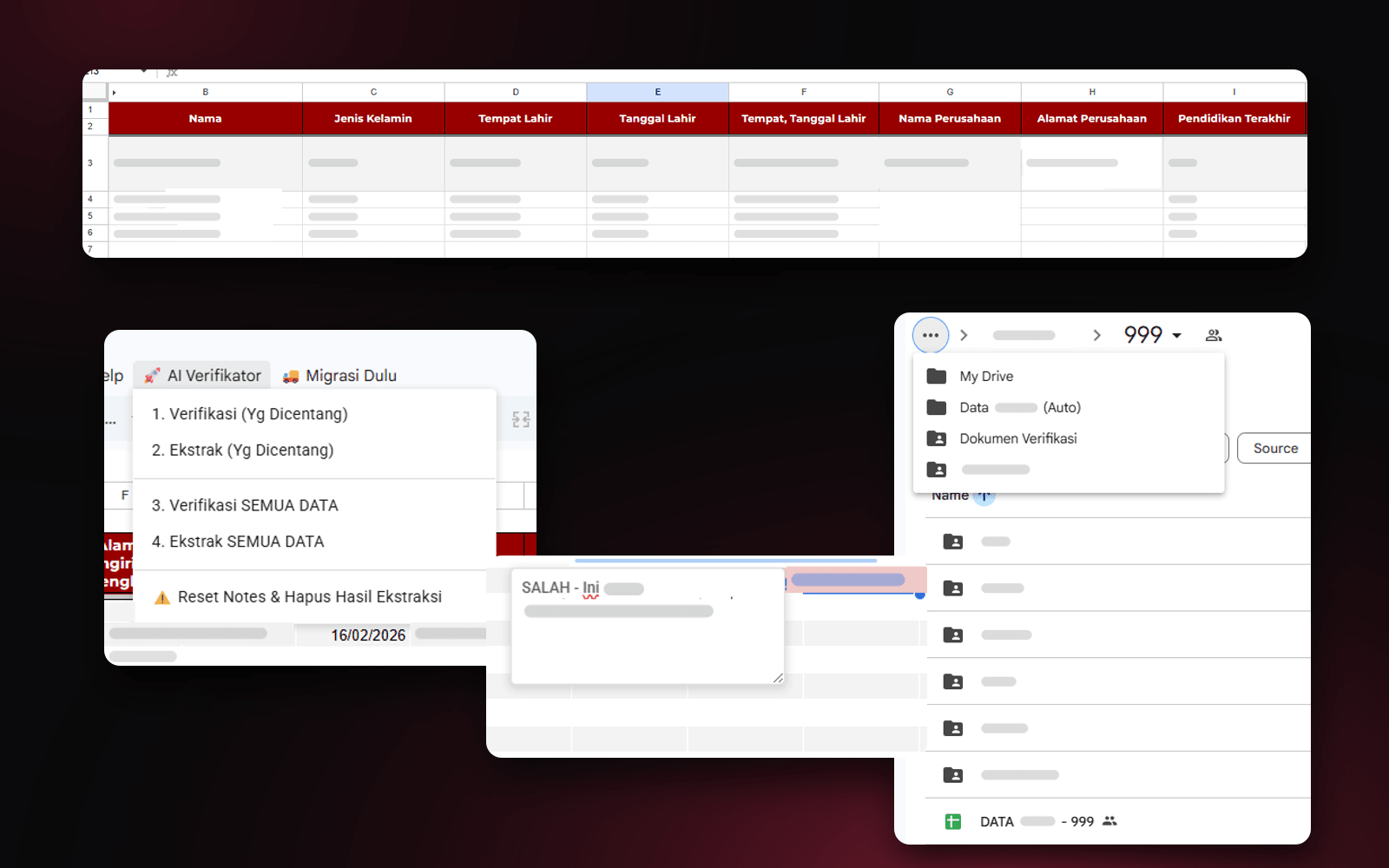
Every registration batch arrives with a stack of documents: forms, CVs, ID documents, and more. Every one had to be checked one by one, its data retyped, and the files then organized in Google Drive.
I built an automation system on Google Apps Script integrated with Gemini 2.5 Flash on Vertex AI. The AI validates the documents and extracts their data, then the script moves every file into organized folders automatically.
The problem: manual verification that was slow and error-prone
Verifying registration documents was done by hand, took a long time, and was prone to human error. The biggest challenges came down to two things: making sure the entered data matched the original documents, and organizing thousands of files in Google Drive.
In the manual era, the process needed four admin roles:
- Admin 1 (Sorting): receives incoming data and sorts documents by hand.
- Admin 2 (Validator): opens each file one by one to make sure the uploaded document is correct, for example a CV file that turns out to contain a passport photo instead.
- Admin 3 (Collector & Editor): downloads the documents, renames each file one by one, then arranges them into folders.
- Admin 4 (Data Entry): retypes document numbers, like NIK (Indonesia's national ID number) and diploma numbers, into the report format the relevant institution requires.
The approach: AI that reads, a script that organizes
I built the system on the Google Workspace the team already used, with Gemini 2.5 Flash as the "eyes" reading the documents. Gemini runs computer vision analysis to validate the documents and extract text from the images, while Google Apps Script handles migrating the files into an organized folder structure.
- 1AdminRuns the system from a menu in Google Sheets
- 2AI ValidationGemini checks that each document matches
- 3AI ExtractionDocument numbers and personal data are pulled automatically
- 4Auto MigrationFiles are renamed and moved to their destination folder
What I built
A custom menu in Google Sheets
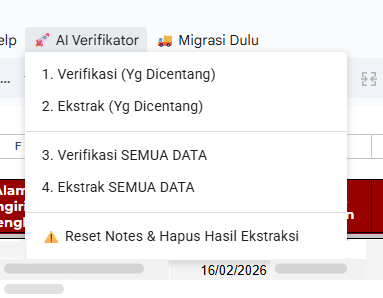
I made sure admins wouldn't need to learn a new app. Every control lives in the AI Verifikator menu, right inside Google Sheets: verify or extract only the checked rows, verify or extract everything at once, and reset notes and extraction results.
AI that understands context, not just OCR
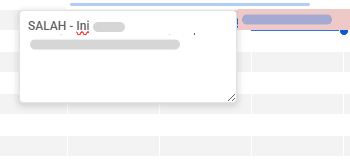
This is the core of the system. Gemini doesn't just read text, it understands what's in the document. If an uploaded file turns out not to be the document requested, the AI flags it right away with a note in the relevant cell.
Automatic data extraction into Google Sheets
Important data like document numbers and personal details is extracted automatically with high accuracy, then shows up on the Google Sheets dashboard without anyone retyping it.

Automatic file migration
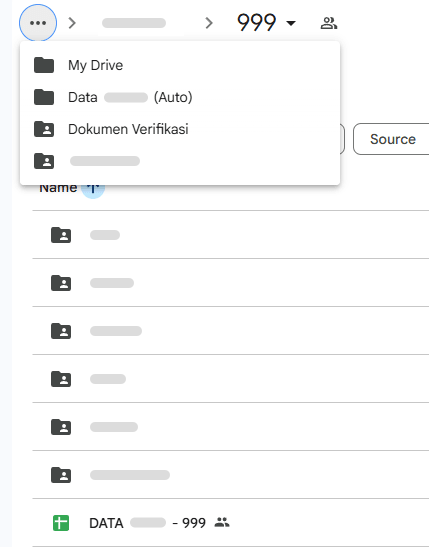
Once verification is done, the script I built bulk-renames the files and moves them into folders organized by batch and document type, then compiles a summary table for reporting. No more files with random names straight out of Google Forms.
Results
Manual era
- Admin sorts incoming documents by hand
- Admin opens files one by one to check they're correct
- Admin downloads, renames, and files documents into folders
- Admin retypes document numbers into the report format
AI-assisted
- Admin just runs the system from a menu in Google Sheets
- Gemini AI verifies that documents match automatically
- AI extracts document numbers and personal data without retyping
- The script bulk-renames files, moves them, and compiles the report summary table
- Reduction in document verification time
- 70%
- Document numbers retyped by hand
- 0
- Registration batches handled systematically
- Hundreds
- Processing time dropped 70%. Verification work that used to be done manually, one by one, now runs automatically.
- Accurate data extraction. Important data like document numbers and personal details is extracted automatically with high accuracy, thanks to the latest multimodal AI models.
- Scalable file management. Data clutter disappeared thanks to automatic file migration that can handle hundreds of registration batches systematically.
Is your team still doing something by hand?
Tell me about it, and let's find the fix together.
More case studies
 AI & Automation
Social media agency
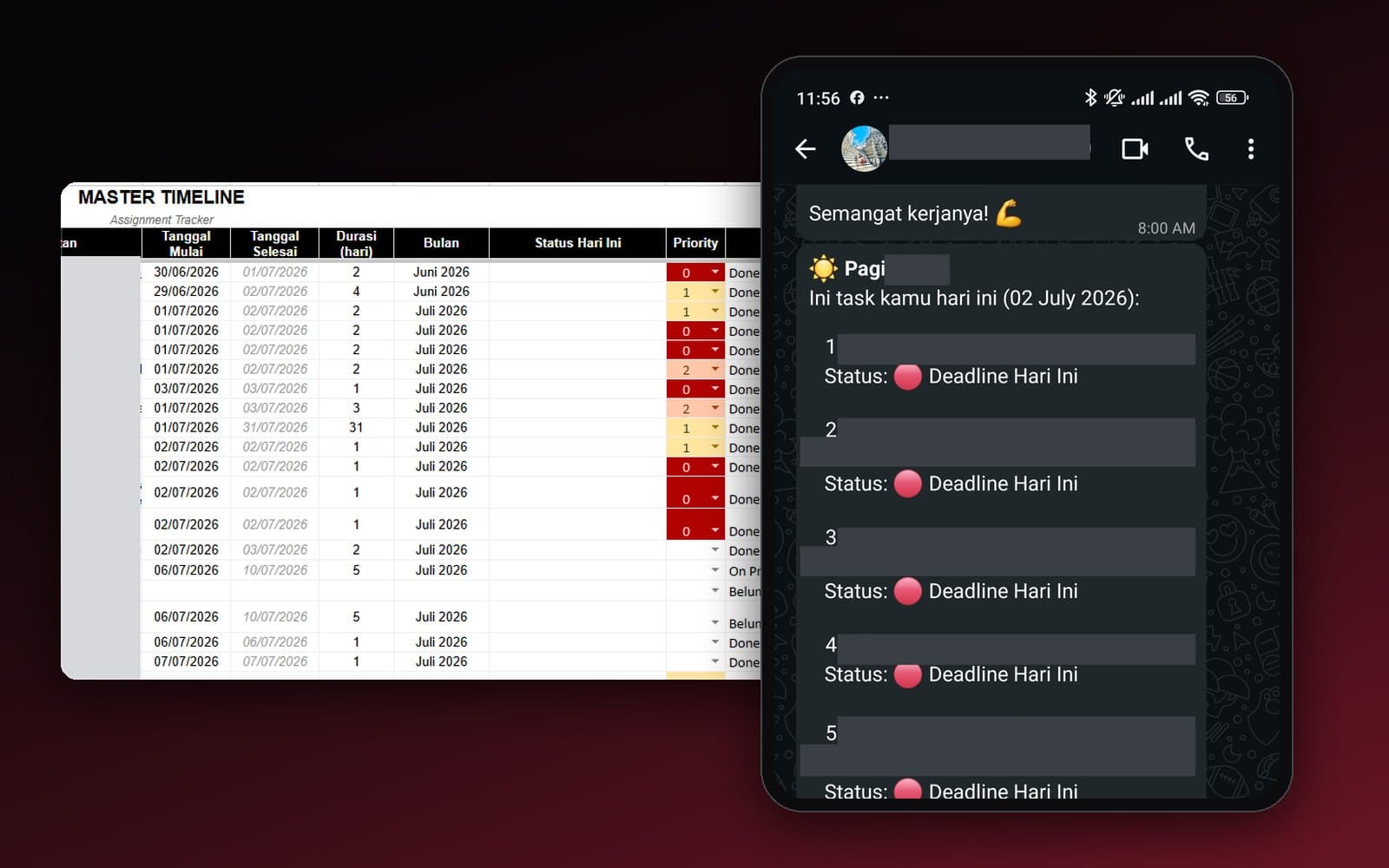
Team Task Reminders Over WhatsApp, Weekly to One-Off, Managed From One Place
Weekly, monthly, and one-off task reminders sent automatically to the team's WhatsApp every morning, with settings the team can change themselves in the sheet, no developer needed.
Read case study AI & Automation
Retail business
Thousands of WhatsApp Chats, a Two-Person Team: Letting the Owner Monitor Without Reading Everything
The owner gets an automatic recap every night at 9pm covering closed deals, complaints, and follow-ups, without reading every chat one by one.
Read case study