How to Get an AI Image Prompt From a Reference Photo
Got a reference photo but stuck on how to write the prompt? Here are the two approaches I use: turn the reference into a text prompt, or have the AI swap the elements directly.
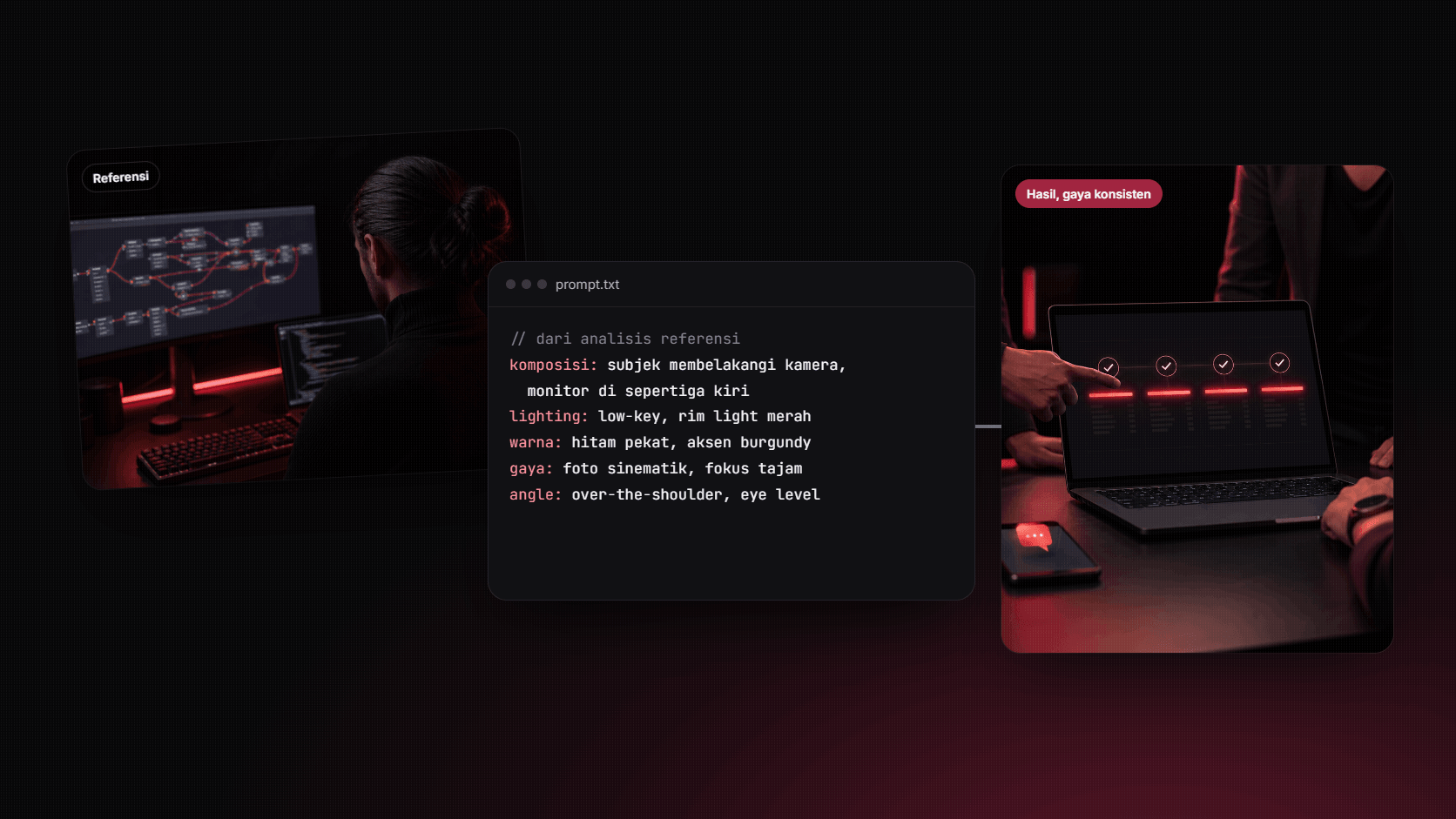
This happens all the time: you find a photo or image with exactly the right vibe, but the moment you open an AI image tool, you're stuck on what to write. A prompt like "photo of someone working at a computer, dark, cool" usually comes out nowhere near what you pictured.
The problem isn't the tool. A visual reference is packed with detail we rarely notice consciously: the direction of the light, where the subject sits, the color tone, even the camera distance. All of that has to make it into the prompt, and that's where most people get stuck.
I use two approaches. The first, turn the reference into a detailed text prompt. The second, hand the reference to AI and tell it to swap in exactly the elements you want.
Approach 1: Take the reference, have AI turn it into a prompt
This approach relies on AI's ability to read images. Claude, ChatGPT, and Gemini can now all accept image uploads, so you can ask them to break down what's in the picture.
The steps:
- Upload the reference image to an AI that can read images.
- Ask for a detailed description per aspect. Don't just ask "describe this image." Ask for five things: composition, lighting, color, style, and camera angle.
- Combine it into one prompt, then add your own brand elements. For example an accent color, a mood, or a rule like "no text and no logos."
The instruction I use:
Describe this image as a detailed image prompt.
Break it down by aspect: composition, lighting, color, style, camera angle.
Write it in English, one paragraph, maximum 80 words.
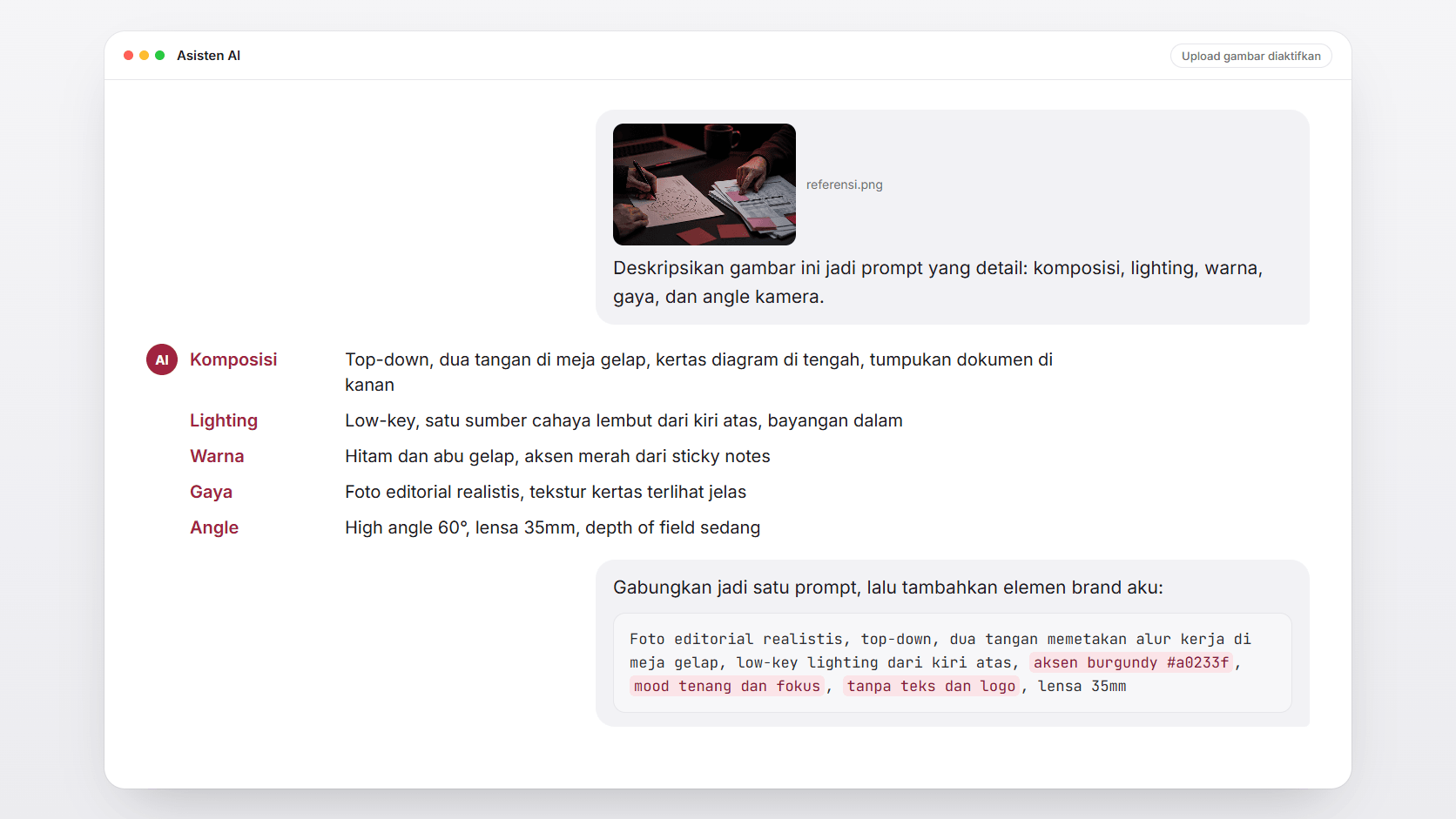
This approach is also used by the AI image tools themselves. Midjourney has a Describe feature that produces four alternative prompts from an image you upload. The difference is, going through an AI assistant, you can ask for the format to be structured and have brand rules dropped straight in.
The upside: the resulting prompt is more precise, because it starts from an actual visual analysis of the reference, not from our memory of it. This prompt can also be reused over and over.
Approach 2: Have AI swap the elements directly
If you don't want the hassle of writing a prompt from scratch, you can hand the reference to an AI image tool that supports editing, and ask for a specific change: swap the subject, change the color, or change the background.
In the Gemini API documentation, Google explains that you can give it an image and use text to add, remove, or change an element, change the style, or adjust the color grading. A tip from the same documentation: also state what should stay the same, like the style, lighting, and composition.
Example instruction:
Change the red light in this image to blue.
Keep the pose, composition, and lighting direction.
Don't change any other element.
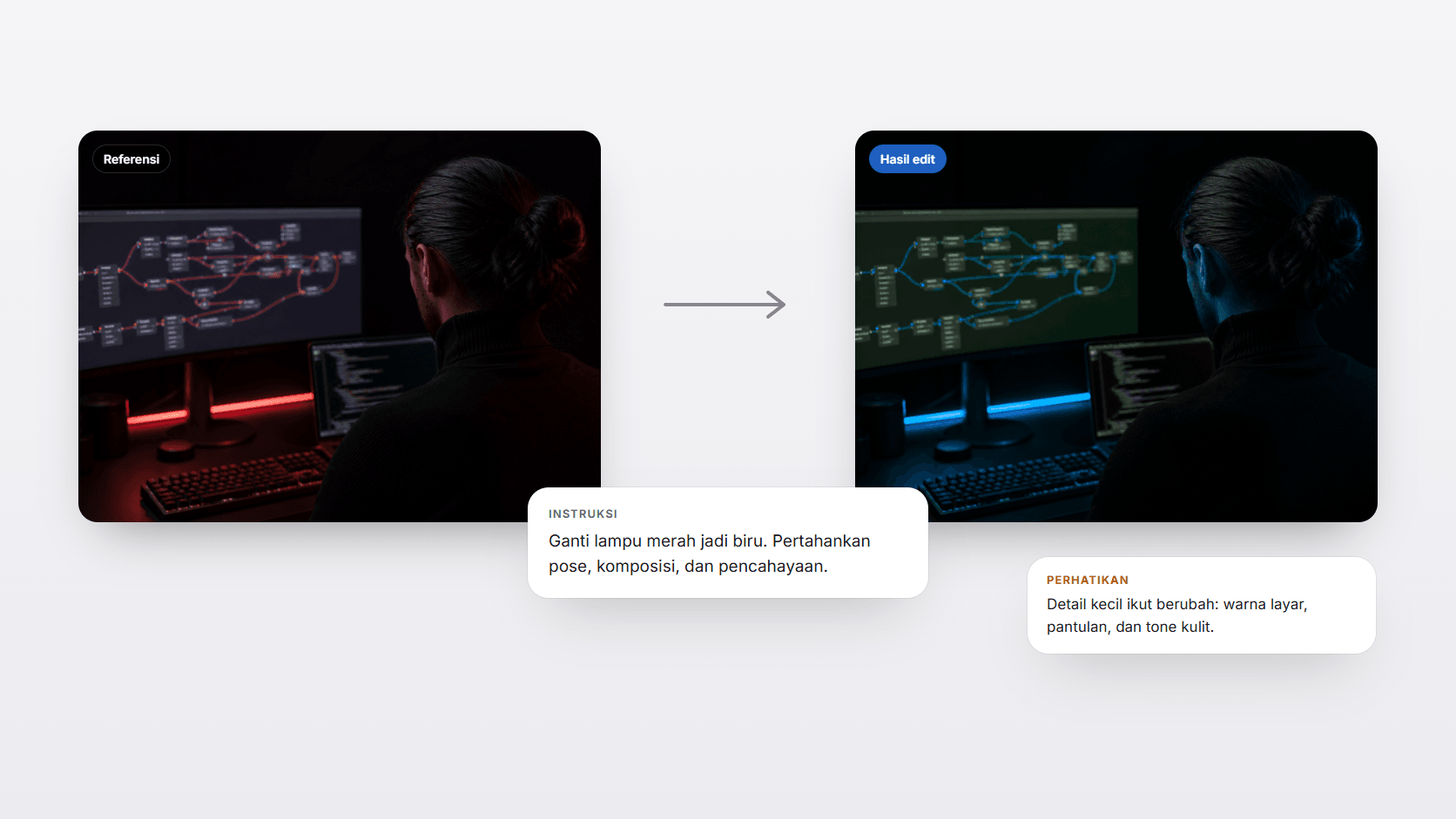
This approach is good for fast exploration. Within a few minutes, you can see five color or background variations without touching a long prompt.
The downside: less control. AI sometimes doesn't just "swap one element," it reinterprets part of the image. A face can shift slightly, textures can move, or small details can disappear. And since there's no complete written prompt, a good result is harder to reproduce for the next image.
Which approach to use, when
| Need | The approach I pick |
|---|---|
| Brand visuals that need to stay consistent across many images | Approach 1: reference into a prompt |
| Material that gets remade routinely, like weekly content | Approach 1: the prompt is reusable |
| Idea exploration and visual brainstorming | Approach 2: direct editing |
| Small revisions on one image that's nearly done | Approach 2: direct editing |
These two approaches often get used one after another too: explore first with the second approach until you land on the right direction, then lock that direction in as a written prompt with the first approach.
Save the prompts that work
A prompt that's proven to produce a good image is an asset, just like a design template. Don't let it stay stuck in one person's chat history. Save it in centralized team documentation, complete with sample results, like I cover in A Simple SOP to Keep Company AI a Team Asset.
Try both approaches on the same reference, then compare the results yourself. From there you'll quickly get a feel for when you need precision, and when exploration is enough.
Is your team still doing something by hand?
Tell me about it, and let's find the fix together.
More notes

Can AI Learn Your Sales Style From WhatsApp Chat History?
Yes, and you usually don't need to train your own model. How to export WhatsApp chats, turn them into a style guide, a ready-to-use prompt, and the customer data risks.
Read the note
Gemini vs ChatGPT for Office Work, Which One Fits Better?
Gemini and ChatGPT can both be used for work, but their strengths differ. A plan price comparison in Rupiah, which suits teams on Google Workspace, and when ChatGPT makes more sense.
Read the note