Meta Ads MCP in Claude: From Connecting to a Dashboard
Step by step connecting Meta Ads to Claude through MCP, pulling campaign reports, then turning them into a dashboard artifact. Includes copy-ready prompts, an ad account warning, and token-saving tips.
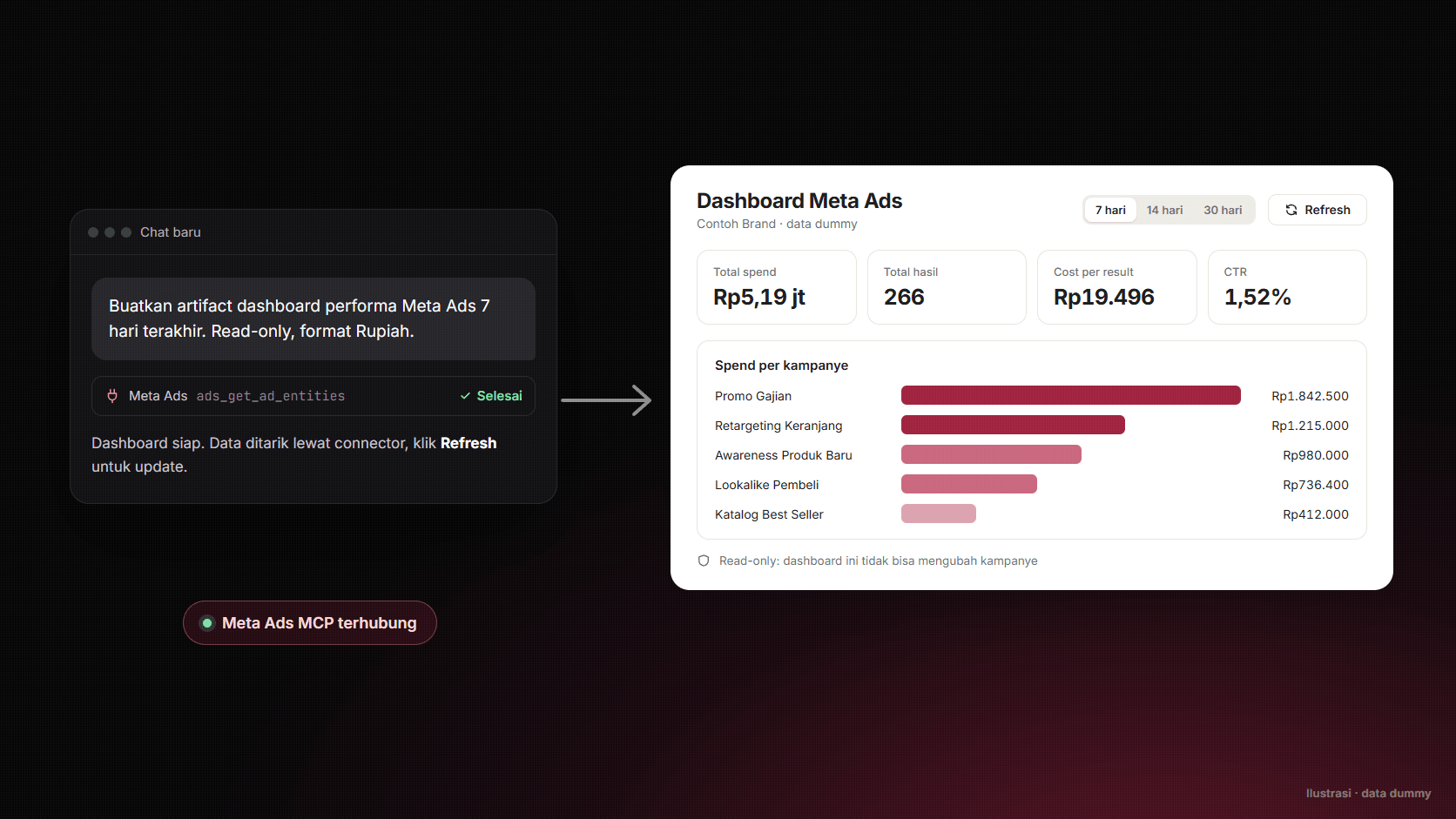
If you manage Meta ads, this flow will sound familiar: someone asks "how are the ads doing this week?", so you open Ads Manager, set up the columns, export, clean it up in Sheets, then summarize it. Meta now has Meta Ads AI connectors, which is still in open beta as of this writing. This connector lets AI read and manage ad accounts through MCP, with no developer credentials, API setup, or coding required.
MCP (Model Context Protocol), put simply, is a standard "plug" that connects AI to other apps. Once plugged in, Claude can read campaign data directly whenever you ask.
In this tutorial I'll walk through the flow from scratch, using just the Claude web or desktop version:
- Add Meta Ads as a connector in Claude.
- Test the connection and pull your first report.
- Turn that report into a refreshable dashboard artifact.
Every prompt in this article can be copied straight over. At the end there's a warning about the ad account and tips to avoid burning through tokens.
What you'll need
- A paid Claude account (Pro, Max, Team, or Enterprise). Free users can actually add one custom connector. But according to Claude's Help Center on artifacts, an artifact connected to MCP is only available on paid plans, on Claude web and desktop.
- A Facebook account that already has access to the ad account you want to read.
- Claude web (claude.ai) or Claude Desktop. This tutorial needs no terminal at all.
One more note: Meta's help page states that not every account gets every tool and feature right away. So if a feature hasn't shown up in your account yet, it's probably still rolling out.
Step 1: Add Meta Ads as a custom connector
Meta's official MCP server address is listed on the Meta Ads AI connectors help page. The same address is used across every supported AI, including Claude:
https://mcp.facebook.com/ads
To add it, following Claude's custom connector guide:
- Open Customize → Connectors.
- Click the + button, then choose Add custom connector.
- Enter any name, like "Meta Ads," then paste the URL above.
- Leave Advanced settings empty, then click Add.
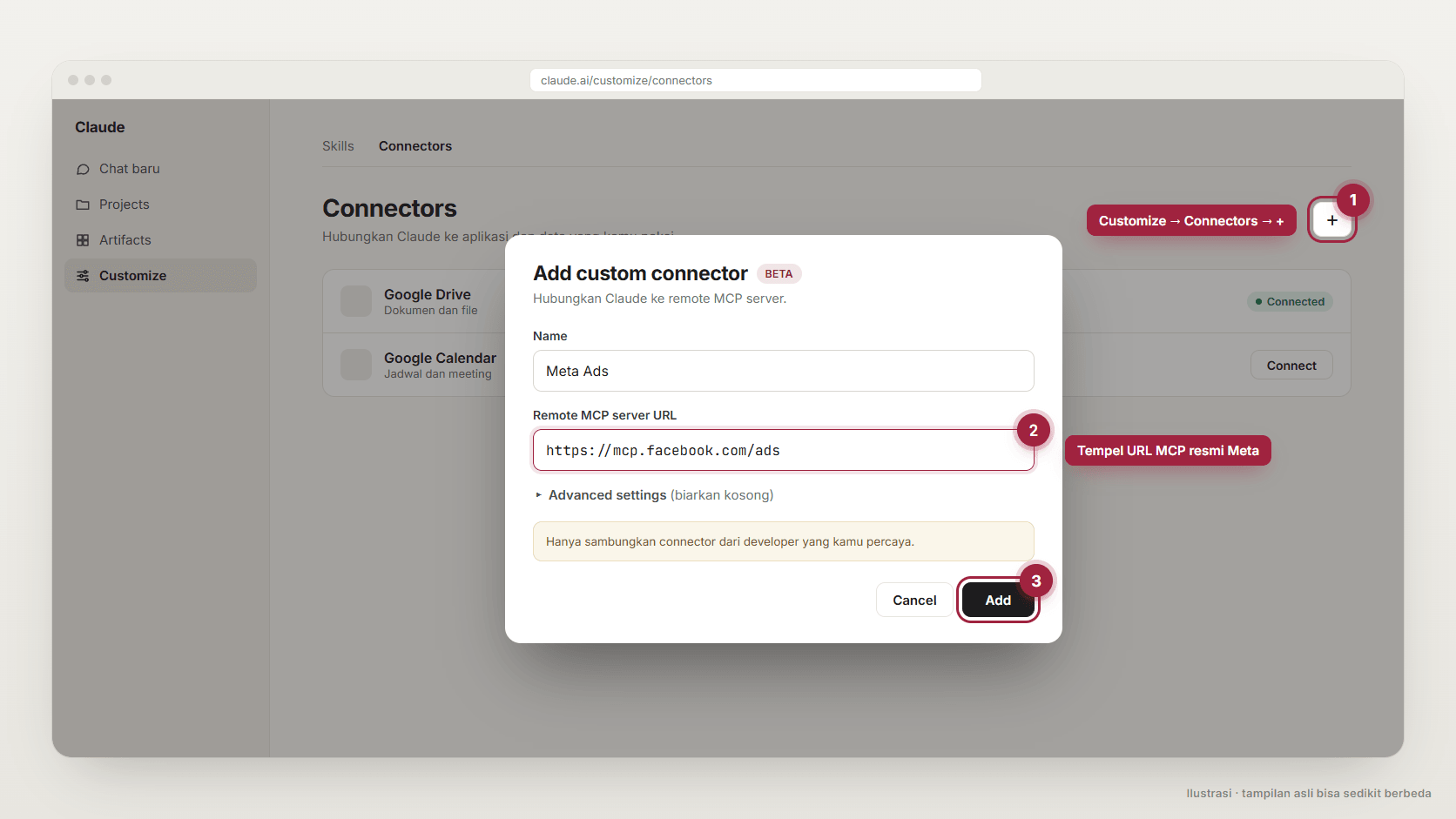
If you're on a Team or Enterprise plan, members usually can't add a connector themselves. The organization owner adds it first through Organization settings → Connectors, and after that members just click Connect on their own Connectors page.
Step 2: Log in and pick an ad account
Once the connector is added, click Connect. A Facebook login window will open. Log in with the account that has access to the ad account, then approve the requested permissions.
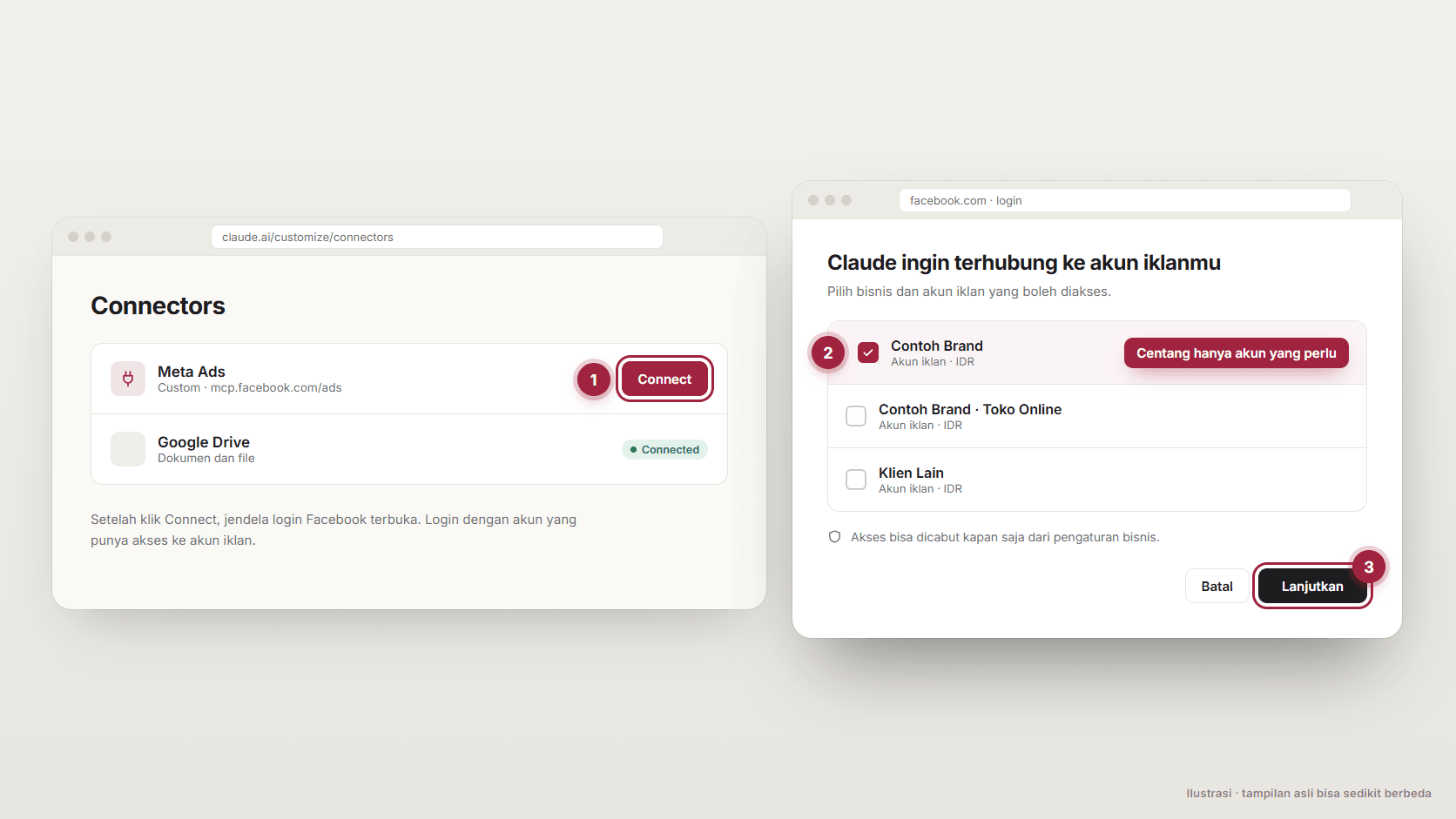
If you manage several ad accounts, for example you have clients, only select the account that actually needs to be read. The less access you grant, the smaller the risk if a command goes wrong.
Step 3: Test the connection with a read-only prompt
Open a new chat. Make sure the Meta Ads connector is active in that chat: click the + button at the bottom left of the chat box, then check the Connectors section. After that, send this prompt:
Use the Meta Ads connector. List the ad accounts you can access: name, ID, currency, and status.

This is just a connection check. Don't create, change, or activate anything.
If your list of ad accounts shows up, the connection is working. If the list is empty, check again whether the Facebook account you logged in with actually has access to that ad account.
Step 4: Pull your first report
Now pull a real report. Replace [ACCOUNT NAME] with your ad account's name:
Use the Meta Ads connector, ad account [ACCOUNT NAME].
Build a performance report for the last 7 days at the campaign level.

Columns: campaign name, status, spend, impressions, clicks, CTR, CPC, results, cost per result.
Sort by highest spend, maximum 10 campaigns.
Close with 3 short insight points: most efficient campaign, most wasteful campaign, and what needs checking.

Rule: read-only. Don't create, change, or activate anything.
When Claude asks for permission to run a tool, read the tool's name before clicking allow. Meta Ads tools are named clearly enough. Ones containing get, list, or read read data. Ones containing create, update, delete, activate, or boost change something in the ad account. When in doubt, assume the tool changes something.
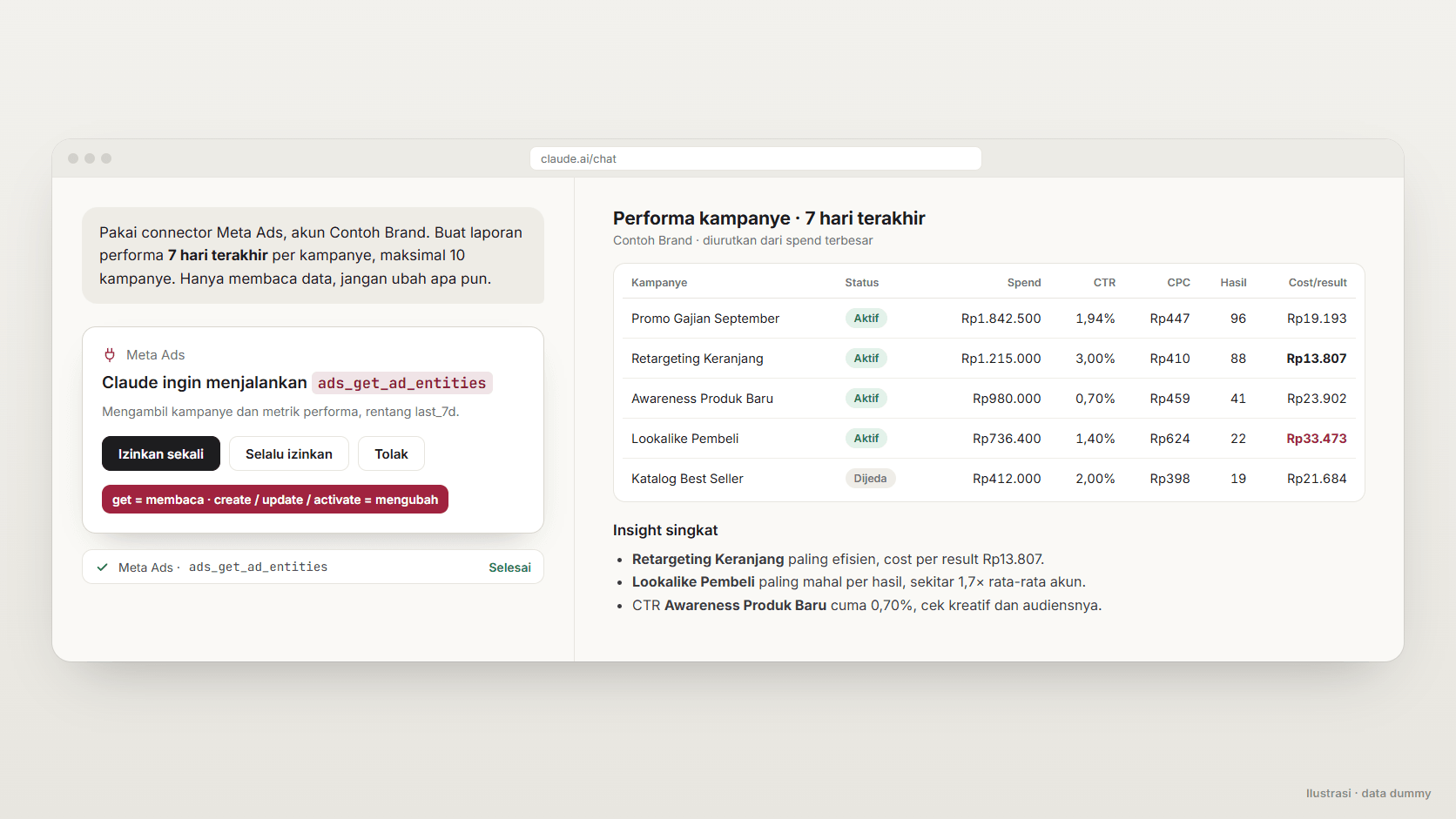
One small useful detail: per the report tool's description, if you don't state a date range, the data is pulled from the last 28 days by default. So always state the range so the numbers match what you want.
Step 5: Turn it into a dashboard artifact
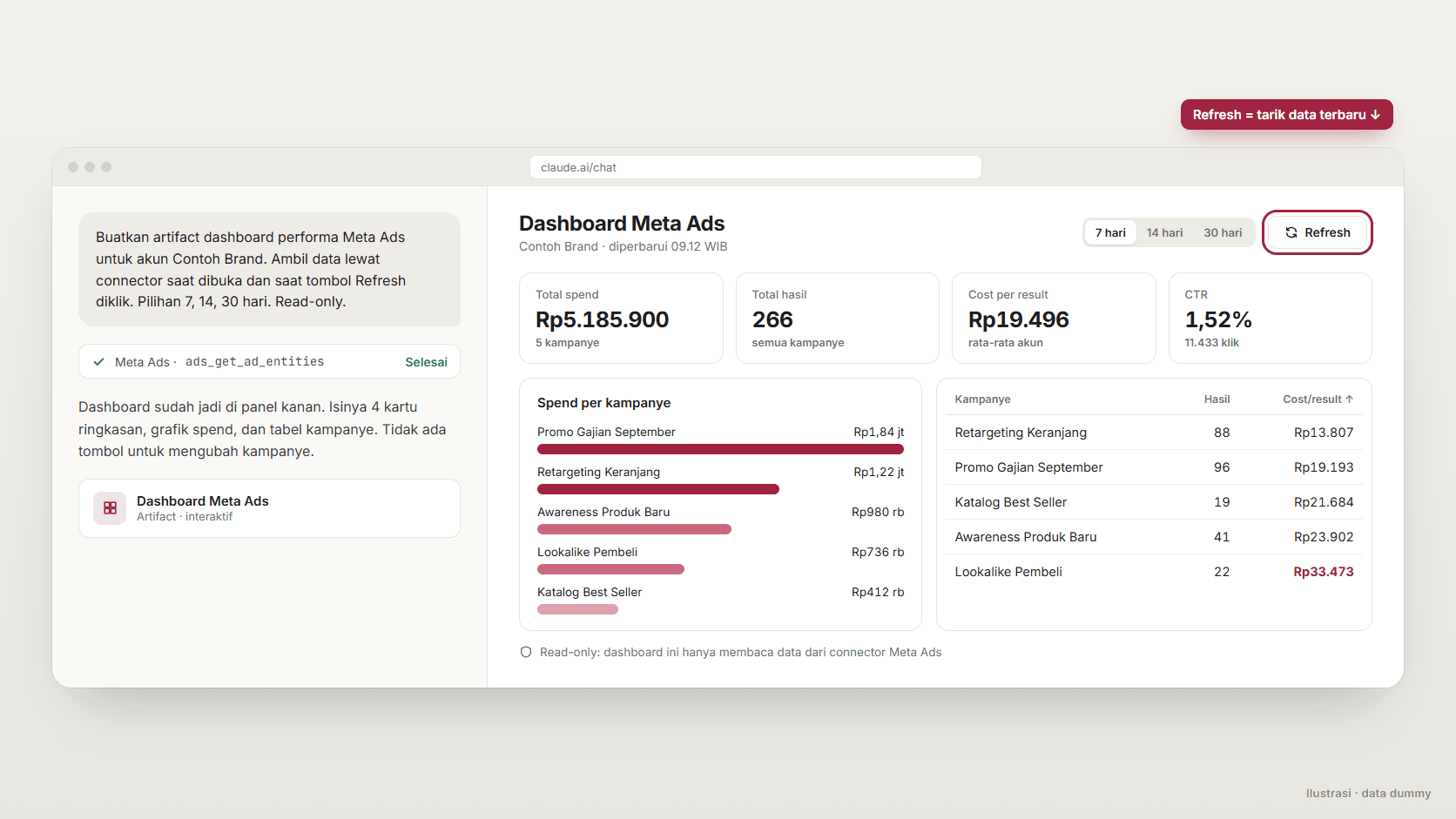
An artifact is a "small app" Claude builds in the side panel next to the chat. According to Claude's Help Center, an artifact can connect to an external service through MCP, so the dashboard can pull data directly from the connector, not just display numbers that were pasted in.
Still in the same chat, send this prompt:
Build a Meta Ads performance dashboard artifact for account [ACCOUNT NAME].

Data:
- Pull data through the Meta Ads connector when the artifact opens and when the "Refresh" button is clicked.
- Default range: last 7 days, with a choice of 7, 14, or 30 days.
- Campaign level only. Fields: campaign name, status, spend, impressions, clicks, CTR, CPC, results, cost per result.

Display:
- 4 summary cards: total spend, total results, average cost per result, CTR.
- A bar chart of spend per campaign.
- A campaign table sortable by column.
- English, currency formatted for the account, and clean on a phone screen too.

Constraints:
- Read-only. Don't build any button or function to create, change, pause, or activate a campaign.
- If data is empty or fails to load, show a clear message. Don't fill it with sample numbers.
A finished dashboard is rarely perfect on the first try. If you want to revise it, state just the part that's changing so Claude doesn't rewrite everything:
Revise the dashboard artifact from before, only change this:
1. Replace the "CTR" card with "CPM".
2. Sort the table by default from the cheapest cost per result.

Don't change anything else.
If the artifact can't pull its own data yet, for example the feature isn't active on your account, use this shortcut instead. The result is a static dashboard from the data already in the chat:
Build a dashboard artifact from the report data you already pulled in this chat.
Don't call any tool again and don't make up numbers. Write the data's date range at the top of the dashboard.
Finally, here's a prompt for a weekly check. Run it in a new chat:
Use the Meta Ads connector, account [ACCOUNT NAME].
Compare the last 7 days with the previous 7 days at the campaign level.
Show only campaigns where cost per result rose or fell by more than 20%.

Format: a short table, then a maximum of 5 bullet recommendations.
Read-only, don't change anything.
Warning: this is a real ad account
This connector doesn't just read reports. According to Meta's help page, a connected agent can also create and edit campaigns, ad sets, and ads, manage custom audiences and catalogs, and even set up A/B tests. That means one wrong permission click can affect real ad spend.
The good news is there are a few built-in safeguards. Meta states every ad created through MCP stays paused until you activate it yourself, and every action needs your authorization through the AI. But once activation is approved, the ad goes live and the budget starts getting spent. Changing the budget or status of a running campaign can also directly affect spend.
Habits I'd recommend:
- Write "read-only" in every report prompt. An explicit constraint reduces the chance Claude changes something on its own initiative.
- Don't select "Allow always" for a tool that changes data. For a read-only tool, that's fine. For
create,update, andactivate, approve them one at a time after reading the details. - Lock it down from Meta's side too. If you have full control over the business portfolio, go to Meta Business Suite → Settings → Integrations → Ads MCP server. There you can block specific actions per ad account, like creating a campaign or changing the budget, or even block budgets above a certain amount. If this menu hasn't appeared yet, the feature isn't available on your account yet.
- Only use the official URL. Claude itself reminds you to only connect to trusted servers and to watch out for the risk of prompt injection. Use
mcp.facebook.com/ads, not an imitation server from an untrustworthy source. - Sharing the dashboard is fine. Everyone who opens a shared artifact has to log into their own MCP, so they don't automatically get access to your ad account.
As for the worry about the account getting banned for using AI: Meta states that using the ads MCP server itself doesn't put the account at risk. Bans usually happen from violating ad policy, like content that breaks the rules.
Tips to save tokens
According to Claude's explanation of usage limits, tools and connectors are among the features that burn through tokens fastest. Meta Ads MCP alone brings dozens of tools (around 90-something on my account). A few ways to keep your quota from running out fast:
- Turn off connectors you're not using in that chat. Through the + button in the chat box, disable other connectors like Drive or Calendar if the task is just about ads. The Search and tools menu can also turn off a specific tool, or web search if it's not needed.
- Always state the date range, level, and columns. "Last 7 days, campaign level, these 9 columns" is far lighter than "show me all my ad data."
- Ask for a summary, not raw data. A daily breakdown per ad per placement balloons the data. Start at the campaign level, and only drill into ad set or ad level if something actually looks off.
- One chat per task. A longer conversation burns through more. For next week's report, start a new chat and reuse the prompt you've already saved.
- Revise the artifact specifically. "Replace the CTR card with CPM" is far cheaper than "rebuild the dashboard."
- Use the dashboard you already have. For routine checks, open the artifact and click Refresh, instead of asking Claude to rewrite the same report and table every day.
- Lower the effort for routine tasks. Pulling a standard report doesn't need extended thinking. Turn it on only when you're asking for deeper analysis.
Wrapping up
Once the connector is set up, a report that used to require exporting and manual cleanup can be done in one prompt. The dashboard artifact can also be reused without exporting a CSV. But remember, the AI now has access to a real ad account. Treat tool permissions like giving Ads Manager access to someone new: only as much as needed, and always checked.
The prompts above are deliberately written with the same pattern: task, context, format, then constraints. If you want to understand that pattern more deeply, read How to Prompt AI in 2026, To the Point. A prompt that's proven to work is also worth saving with the team, like I cover in A Simple SOP to Keep Company AI a Team Asset.
Is your team still doing something by hand?
Tell me about it, and let's find the fix together.
More notes

Can AI Learn Your Sales Style From WhatsApp Chat History?
Yes, and you usually don't need to train your own model. How to export WhatsApp chats, turn them into a style guide, a ready-to-use prompt, and the customer data risks.
Read the note
Gemini vs ChatGPT for Office Work, Which One Fits Better?
Gemini and ChatGPT can both be used for work, but their strengths differ. A plan price comparison in Rupiah, which suits teams on Google Workspace, and when ChatGPT makes more sense.
Read the note